 Otto
OttoStop Context Switching: AI Email Drafting for Busy Professionals
Stop Context Switching: AI Email Drafting for Busy Professionals

AI can draft a professional, on-tone email from a one or two line prompt, cutting the time you spend on routine correspondence. It works best for follow-ups, meeting requests, and standard outreach. It works worst when facts, tone, or stakes are high. Every draft still needs a human read before it leaves your outbox.
TL;DR:
- AI drafting tools work best for routine emails like follow-ups, meeting requests, and thank-yous, but still require human review for high-stakes or sensitive messages.
- Crafting specific prompts with detailed context, such as recipient role, purpose, tone, and key facts, significantly improves draft quality and relevance.
- Using in-app integrations within Outlook or Gmail offers a smoother workflow, especially when connected to your calendar and meeting notes, reducing context switching.
- Verifying every fact and explicitly stating the tone before generation prevents common errors and ensures the draft aligns with your intent.
- Combining AI with tools that integrate email, calendar, and meeting data, like Otto, helps maintain context and reduces mental overhead in busy communication workflows.
Table of Contents
- How AI Email Drafting Actually Works
- Prompt Formulas and Templates You Can Use Today
- Making AI Drafts Actually Sound Like You
- What to Check Before You Trust It With Your Inbox
- Where AI Drafting Fits in Your Actual Workflow
- Troubleshooting: Getting Drafts You Can Actually Trust
- When I Reach for AI Drafting, and When I Don’t
- Otto Handles the Context Switching AI Drafting Tools Miss
- Sources
How AI Email Drafting Actually Works
Feed the tool a short prompt (recipient, purpose, tone) and it returns a structured draft in seconds, then you edit and send. That is the entire loop: prompt, draft, refine. Most systems, including Microsoft 365’s Copilot, reduce time spent on repetitive email tasks by turning a couple of sentences into a full message with tone and grammar already handled.
You have two flavors to choose from. In-app tools built into Outlook or Gmail draft right where you already work, so there’s no copy-pasting between windows. Standalone apps often carry more formatting options and template libraries but force you to switch tabs and re-paste context every time.
Neither replaces judgment. Microsoft’s own guidance on Copilot confirms that enterprise-grade tools keep a human-in-the-loop requirement by design. You verify, you approve, you send. The AI never gets the last word.
Prompt Formulas and Templates You Can Use Today
Vague prompts get vague drafts. The formula that works: recipient role + purpose + tone + specific details. “Write a follow-up to a client (Sarah, VP of Ops) about our Tuesday call, friendly but direct, mention the March 15 deadline.” That’s it. That’s the whole trick, according to Zapier’s guidance on AI email assistants, which found that naming the audience, outcome, and required facts consistently beats generic prompts.
A few starting points worth keeping on hand:
- Meeting request: “Ask [name] for 30 minutes next week to discuss [topic]. Offer two time slots. Keep it brief and warm.”
- Follow-up: “Follow up on my email from [date] about [topic]. Polite, no guilt trip, one clear ask.”
- Outreach: “Introduce myself to [name] at [company]. Mention [specific reason for reaching out]. End with a low-pressure ask for 15 minutes.”
- Thank-you: “Thank [name] for [specific thing]. Genuine, short, no corporate filler.”
- Tricky reply: “Decline this request without sounding cold. Acknowledge their effort, explain briefly, offer an alternative if possible.”
Always drop in real names, real dates, and the actual outcome you want. Generic placeholders produce generic drafts.
Making AI Drafts Actually Sound Like You
The fastest way to kill that “obviously AI wrote this” feel: feed the tool a sample of your own writing first. Paste in three or four sentences you’ve actually sent, and most drafting tools will pick up your rhythm, your favorite transitions, even how you sign off.
Set formality explicitly instead of hoping the tool guesses right. “Casual but competent” reads differently than “warm and professional,” and naming it saves you a rewrite cycle.
Resist the urge to polish every sentence into corporate smoothness. A slightly imperfect phrase that sounds like you beats a flawless one that sounds like nobody. If a draft feels hollow, it usually needs one specific detail restored, not a rewrite. A name, an inside reference, a reason you’re writing right now. That’s usually the whole fix.
What to Check Before You Trust It With Your Inbox
Before rolling AI drafting into daily use, confirm the tool’s data policy. Does inbox content train public models, or does it stay contained? Marketplace compliance documentation is worth reading closely here, since not every vendor discloses this clearly.
Look for real enterprise controls: SOC 2 attestation, data residency options, and explicit statements about whether your emails feed model training elsewhere. Admin-level approval gates and audit logs matter more once more than one person on your team is drafting with AI, since you need a record of who approved what.
None of this replaces basic judgment. Sensitive communications, personnel matters, anything with legal exposure, always route through a human review step before sending, no exceptions.
Where AI Drafting Fits in Your Actual Workflow
In-app integration wins for daily use. If Outlook or Gmail already has drafting built in, use that first; switching to a separate tab for every routine email adds friction you don’t need. Regional Outlook documentation backs this up: teams that keep drafting inside the inbox they already use report less context switching than those bouncing to external apps.
The bigger gain comes from what feeds the draft. Connect your calendar and meeting notes, and a scheduling email or follow-up writes itself with the right date, the right name, the right ask already in place, a pattern Zapier’s integration research confirms improves relevance significantly.
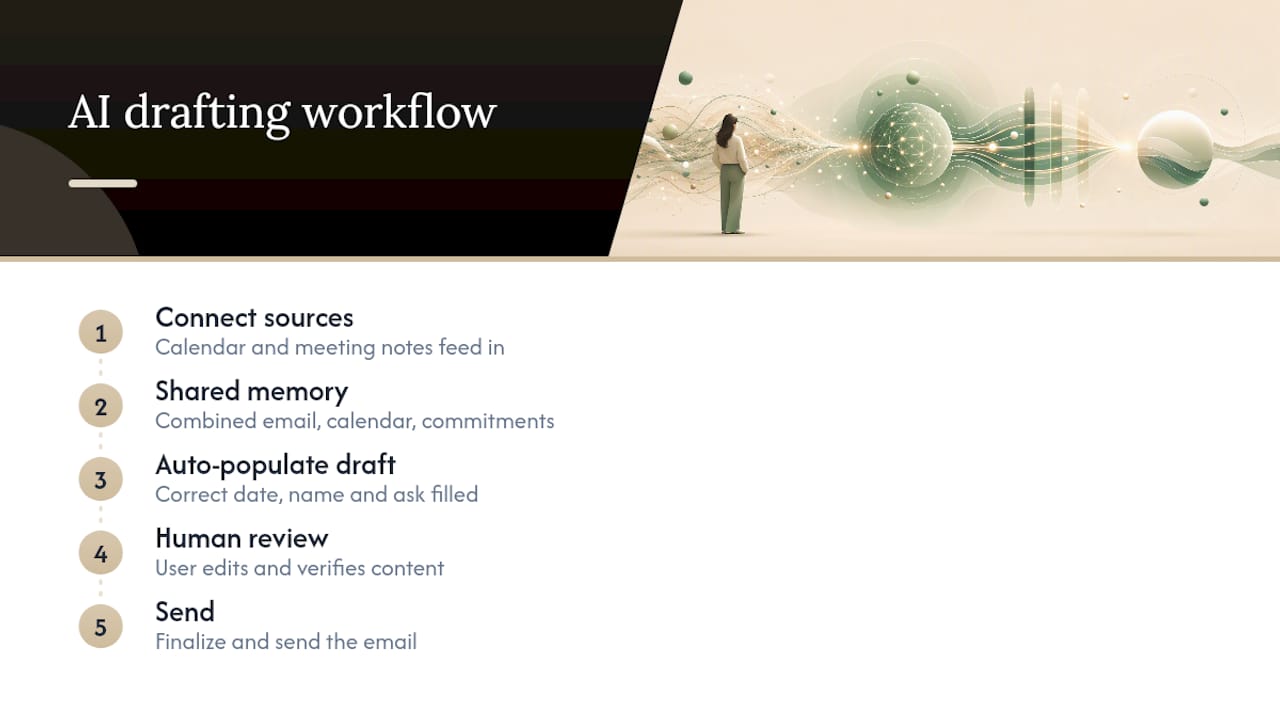
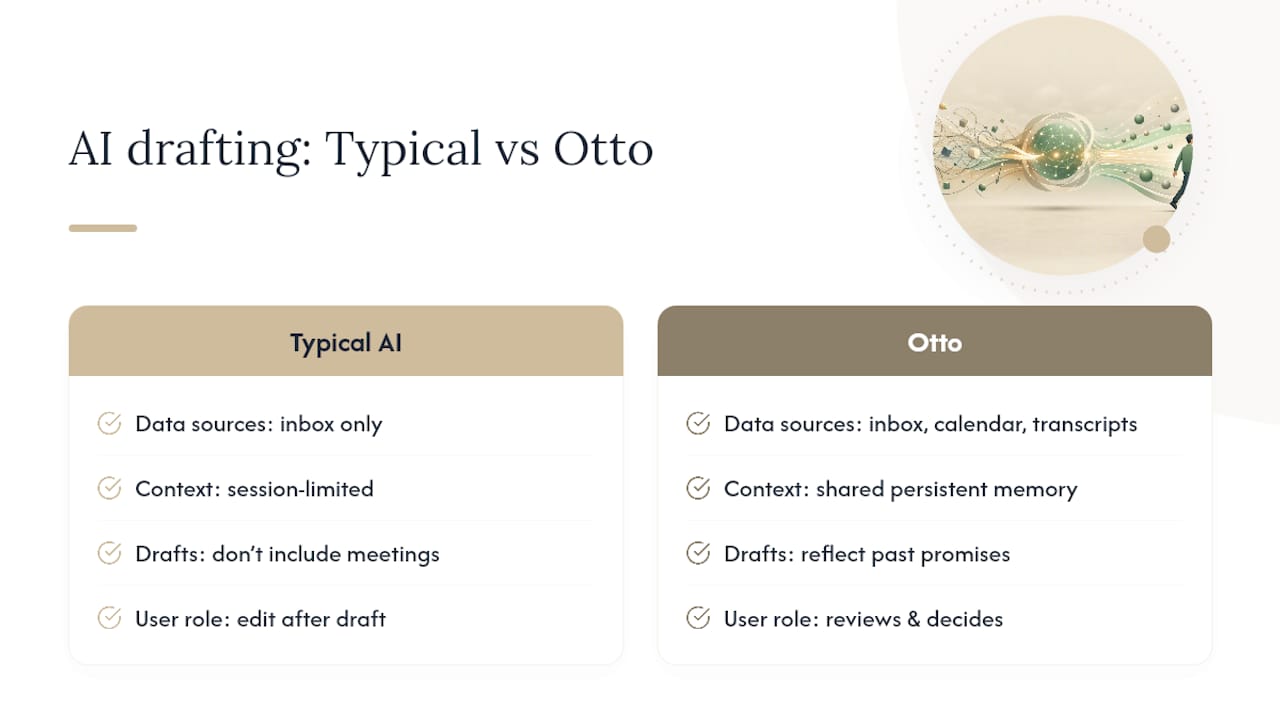
That’s the gap most standalone tools can’t close. They draft well but see only your inbox. A tool like Otto that holds email, calendar, and meeting commitments in one shared memory can draft a follow-up that already knows what you promised on last week’s call, no re-explaining required. The delegation flow stays simple either way: draft, review, send.
Troubleshooting: Getting Drafts You Can Actually Trust
Most bad drafts trace back to a missing input, not a broken tool. Run through this before you hit generate:
- Name the recipient and their role. “A colleague” produces a worse draft than “my manager, Priya.”
- State the objective in one sentence. What do you want them to do after reading this?
- Give a deadline or timeframe if one exists. AI can’t guess urgency.
- Specify tone explicitly rather than trusting the default.
- Verify every fact before sending, especially names, dates, and numbers the AI generated on its own.
If the tone lands wrong, paste one sentence you’d actually write and ask the tool to match it. If facts are wrong, add them directly to the prompt rather than editing after the fact. Build a small library of prompts that worked and reuse them.
Pro Tip: Test new prompt formulas on low-stakes emails first, an internal check-in or a routine thank-you, before trusting the same phrasing on a client-facing message.
When I Reach for AI Drafting, and When I Don’t
I use AI drafting for anything routine: scheduling, follow-ups, thank-yous, the emails I’d write on autopilot anyway. It’s faster and the quality holds up fine.
I skip it entirely for anything involving a personnel issue, a legal negotiation, or wording where one sentence could cost real money or trust. Those need a human brain from word one. What I actually want is a tool that already knows my calendar and my commitments before I start typing, which is the gap Otto is built to close.
— Eddie
Otto Handles the Context Switching AI Drafting Tools Miss
Most AI email tools draft well but know nothing beyond your inbox. Otto is different: it connects email, calendar, and meeting transcripts into one shared memory, so a draft to a client already reflects what you promised on last week’s call, without you re-typing the context every time.

Every draft still goes through you first. Otto drafts, you decide, whether that’s a follow-up, a meeting request, or a check-in on a commitment tracked from a call three weeks ago. For founders, operators, and chiefs of staff juggling a dozen threads across email and meetings, that shared memory is what actually cuts the mental overhead, not just the typing time. For teams building AI-native email infrastructure directly into their own products, Sendmux’s email API offers a look at how drafting connects to agent workflows at the infrastructure level.
Visit Otto to see how a shared memory across your inbox, calendar, and meetings changes what your morning looks like.
Sources
For deeper reading, see Microsoft’s documentation on Copilot’s email writer and Zapier’s practical guide to AI email assistants.