 Otto
OttoKeep 1–2 Hour Focus Blocks with Auto Scheduling for Busy Professionals
Keep 1–2 Hour Focus Blocks with Auto Scheduling for Busy Professionals

Yes, you can auto schedule protected focus blocks in your calendar. Turn on a focus plan or your calendar’s automatic focus scheduler, and it scans for open slots, books them, and applies to Do Not Disturb behavior so meetings and notifications stay out of the way. The first move is simple: open your calendar’s focus settings today and enable a daily focus plan or book one session to see how the booking logic behaves before you commit to a recurring rule.
TL;DR:
- Automatic focus scheduling works best when you set clear duration preferences, such as at least 90 minutes for deep work, and specify your preferred time of day.
- Ensuring your status and notifications sync across all your apps, including chat and email, is critical to prevent interruptions during focus blocks.
- Troubleshooting common issues like permission errors, overlapping recurring events, or sync gaps can help maintain reliable auto booking, but manual setup remains an option.
- Human oversight is necessary for high-priority commitments, as calendar-only tools lack context about urgent tasks or promises that must override availability.
- Tools like Otto go beyond calendar availability by incorporating your email, meetings, and commitments, providing smarter focus time suggestions aligned with actual workload.
Table of Contents
- How Do You Auto Schedule Focus Time Automatically?
- Quick Setup Steps by Calendar App
- Configure and Tune Your Focus Plan
- Protecting Focus Time Across Every App You Use
- Why Isn’t Automatic Scheduling Blocking Meetings?
- When Should a Human Override the Scheduler?
- Auto Schedule Focus Time: What Actually Works
- Make Focus Time Actually Hold With Otto
- Selected Practical Resources
- Sources
- FAQ
How Do You Auto Schedule Focus Time Automatically?
A focus plan works like a standing reservation system for your attention. Instead of you hunting for gaps between meetings every morning, the tool scans your calendar, finds open windows that match your preferences, and books them before anyone else grabs that time. Microsoft’s focus plan feature, for example, typically shows bookings two weeks out and lets you set daily focus hours along with a morning or afternoon preference.
Setting one up takes about five minutes:
- Open your calendar app’s focus or insights settings and locate the automatic scheduling toggle.
- Set your daily focus target (most people start with one to two hours).
- Choose a preferred timeframe, morning or afternoon, based on when you actually think clearly.
- Decide whether new meeting invites get auto-declined during those blocks.
- Turn on reminders so the block doesn’t get ignored once it lands on your calendar.
It won’t usually override a meeting that’s already booked, but it will claim empty time before you fill it with something less important.
Pro Tip: Check your calendar every Sunday night for the coming week’s auto booked blocks. Catching a badly placed session two days early is a lot easier than rescheduling it the morning of.
Quick Setup Steps by Calendar App
Every major calendar platform now offers some version of automatic focus scheduling, along with a manual workaround if you’d rather build it yourself.
Google Calendar lets you book a single, non-recurring focus session directly from Day or Week view. Click an open slot, select “Focus time” as the event type, and you can set it to mute chat notifications and auto-decline incoming meetings for that window.
Outlook and Microsoft 365 users get a dedicated focus plan that runs in the background, booking recurring sessions without you touching the calendar daily. It pairs the booking with a status change, muting chats and suppressing pop-up notifications for the duration.
If your calendar doesn’t offer true automatic booking, or you just don’t trust it yet, the manual fallback still works fine:
- Create a recurring “Focus time” event at the same time each day or week.
- Set the event’s availability to busy and enable Do Not Disturb if your app supports it.
- Turn on auto-decline for meeting invites that land inside the block, where your calendar allows it.
- Mark the event private if you don’t want colleagues seeing what you’re working on.
Once it’s live, run a quick verification pass. Your status should read “focusing” or an equivalent label, notification badges should stay quiet during the block, and any meeting invite sent during that window should bounce back automatically or land in a pending queue rather than locking onto your calendar.
Configure and Tune Your Focus Plan
Duration matters more than most people assume. A 30 to 45 minute burst works for email cleanup or quick review tasks, but anything requiring real concentration, writing, strategy, coding, needs at least 90 minutes to get past the initial ramp up. Longer sessions of 2 to 4 hours suit deep project work, but they’re harder to defend against a full meeting day.
- Short bursts (30 to 90 minutes): easier to schedule, less disruptive to a busy day, weaker for complex work.
- Long blocks (2 to 4 hours): better for hard problems, but only realistic once or twice a week for most schedules.
- Time of day: automatic schedulers generally try to avoid lunch and existing conflicts, but they won’t know your energy patterns unless you set a preference.
- Exception rules: decide whether the tool can bump existing tentative meetings or only block new ones from landing.
Pro Tip: Set a timer the moment your focus block starts. A how to guide from How-To Geek notes that pairing the block with a specific task and a countdown turns a reserved slot into actual output, not just quiet time on your calendar.
Protecting Focus Time Across Every App You Use
A calendar block only works if the silence actually follows you. Do Not Disturb on your calendar doesn’t automatically mute Slack, text messages, or a second monitor full of email tabs.
- Sync your status across every priority app you use, calendar, chat, email, and check which notifications still sneak through during a test block.
- Set your calendar visibility to private or “busy” and enable auto-decline so meeting invites can’t land inside the window.
- Send a one-line heads-up to close collaborators: “Blocked from 9 to 11 for deep work, back after.”
- Start with a launch ritual: pick the one task that matters most, set a timer, and close every browser tab unrelated to it.
Status syncing across a scattered toolset is where most focus blocks quietly fail. A calendar can flip your status to “focusing,” but if your team’s chat tool doesn’t know that happened, the interruptions keep coming anyway.
Why Isn’t Automatic Scheduling Blocking Meetings?
Three things usually cause a broken focus block: the calendar app lost permission to manage your schedule, a sync gap between two connected apps, or a conflicting recurring event that keeps overriding the new block.
- Reauthorize calendar access, permission scopes sometimes expire silently after an app update.
- Toggle the focus plan off, wait a minute, then turn it back on to force a fresh scan.
- Check your auto-decline rules; some calendars only decline new invites, not ones sent before the block existed.
- Remove or edit any recurring event that overlaps the same window, competing rules often cancel each other out silently.
If automatic scheduling still doesn’t fit your workflow after troubleshooting, turn it off permanently and switch to a manual recurring “Focus time” event instead. You lose the automatic slot finding, but you gain full control over exactly when and how the block appears.
When Should a Human Override the Scheduler?
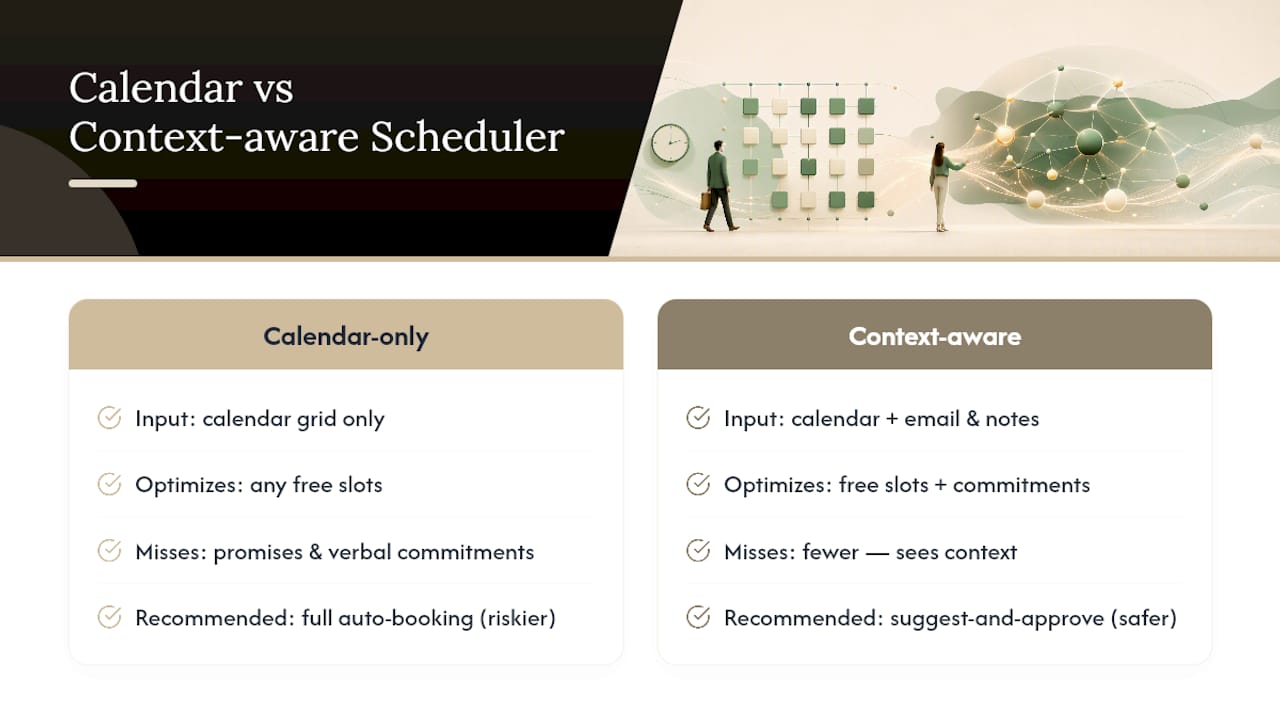
Automatic booking is good at one thing: finding empty space. It’s bad at knowing which empty space actually matters. A scheduler that only sees your calendar has no idea you promised a client a proposal by Friday or that a teammate is waiting on a decision you made verbally in yesterday’s call. That’s the real limit of calendar-only automation, it optimizes for open time, not for context.
Integrated tools that also read your email and meeting notes close that gap, because they can weigh a scheduling decision against actual commitments instead of just free space on a grid. For high-stakes work, the safer setting is “suggest and approve” rather than full auto-booking, so you keep the final call while still benefiting from the scheduler finding candidate slots faster than you would by hand.
Auto Schedule Focus Time: What Actually Works
Most advice on this topic treats focus time like a calendar feature problem: pick a duration, pick a time slot, done. That’s incomplete. The scheduling half is genuinely solved, tools have handled the mechanics of finding open time and applying Do Not Disturb for years now. The part that actually fails is context. A calendar has no memory of what you promised on a call, what’s sitting unanswered in your inbox, or which meeting invite is worth breaking a focus block for.
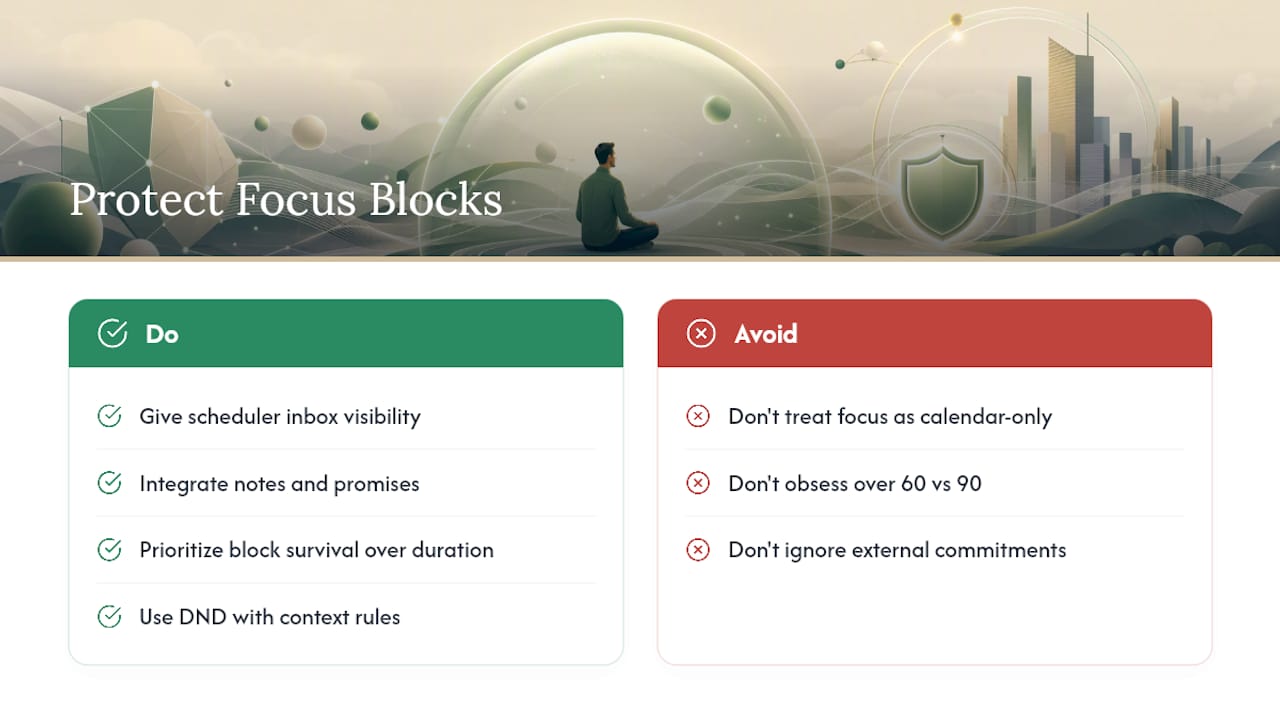
That’s where the conventional setup advice runs out of road. Duration and time-of-day settings matter, but they’re tuning knobs, not the core problem. The real fix is giving your scheduling tool visibility into the same commitments you’re juggling everywhere else, not just your calendar’s open slots.
Prioritize this first: before you obsess over 60 minutes versus 90, ask whether your focus block will survive contact with the rest of your day. If your calendar can’t see the client email that just landed or the promise you made in yesterday’s stand up, no amount of setting tuning will protect that block when it matters most.
— Eddie
Make Focus Time Actually Hold With Otto
Otto is built for the exact gap that breaks most auto scheduled focus blocks: your calendar can find open time, but it has no idea what’s actually urgent. Some AI tools centralize your email, calendar, meetings, and commitments into one memory, so when they suggest a focus booking, they weigh that slot against promises made in calls and deadlines in your inbox, not just empty grid space.

The workflow stays simple: Otto suggests booking candidates, captures promises made in meetings and email, and drafts follow-ups automatically, but nothing gets sent or finalized without your explicit approval. If you want a scheduler that actually understands your workload instead of just your availability, check the Free, Upgraded, and Max plans and see which fits how you work.
Selected Practical Resources
- MatePoints on small automation workflows, for readers curious how automation patterns extend beyond calendars.
FAQ
How Do I Automatically Schedule Focus Time in Outlook?
Open your focus plan settings in Outlook or Viva Insights, set your daily focus hours and a morning or afternoon preference, and the tool will scan your calendar and book protected blocks up to two weeks ahead.
How Do You Schedule Focus Time?
Enable a recurring focus plan for automatic booking, or manually create a “Focus time” event in Day or Week view and set it to Do Not Disturb with auto-decline for new meetings.
How Do I Stop Outlook From Scheduling Focus Time Automatically?
Open the focus plan settings and toggle automatic scheduling off; if bookings persist, reauthorize calendar permissions first, since a stalled permission can keep old rules running.
What Does Focus Time Mean in Outlook?
Focus time is a calendar block that pairs a reserved period with status and notification changes, muting chats and suppressing alerts so the scheduled hours actually stay interruption free.
Can an AI Tool Schedule Focus Time More Reliably Than a Calendar App Alone?
A calendar-only scheduler only sees open slots, while a tool like Otto also weighs email and meeting commitments before suggesting a booking, which tends to reduce conflicts with real priorities.