 Otto
OttoCalendar Sharing Privacy You Can Fix in Minutes with Free/Busy or E2EE
Calendar Sharing Privacy You Can Fix in Minutes with Free/Busy or E2EE

Setting every shared calendar to free/busy or removing unauthorized people addresses a large majority of calendar privacy issues quickly. The remaining risk lives in two blind spots: your organization’s admin can often override what you set, and nothing on Google Calendar, Outlook, or Apple’s iCloud is end-to-end encrypted by default. If your calendar holds anything genuinely sensitive, look at an encrypted option like Proton Calendar or an availability-only feed instead.
TL;DR:
- Most calendar platforms offer permission levels from free/busy viewing to full editing, but organization-wide admin settings can override individual privacy choices.
- Sharing a calendar publicly or broadly often unintentionally exposes event details, locations, or attendee lists through search or third-party apps.
- Using end-to-end encrypted calendars like Proton Calendar prevents service providers from reading event content, but limitations exist when inviting outside users.
- Revoking access requires manually removing users, unsubscribing from shared calendars, and consulting IT policies on admin override, especially for work or school accounts.
- Setting calendars to free/busy and marking sensitive events as private generally protects privacy better than broad sharing, while availability-only feeds suit casual or scheduling needs.
Table of Contents
- How Calendar Sharing Privacy Actually Works Across Platforms
- Quick Fixes: Google, Outlook, and Apple Calendar
- Where Shared Calendars Actually Leak Privacy
- Stronger Options: Encryption and Availability-Only Feeds
- Auditing and Revoking Shared Calendar Access
- What I’d Set as Default
- The Real Gap in Calendar Sharing Privacy
- Sources
- FAQ
How Calendar Sharing Privacy Actually Works Across Platforms
Every major calendar platform runs on the same basic idea, even though the menus look different. When you share a calendar, you are not handing over a single on/off switch. You are choosing a permission level, and that level determines exactly how much of your day becomes visible to someone else.
Most platforms offer a version of this tiered structure:
- Free/busy only — the viewer sees blocked time slots but no titles, locations, or descriptions.
- See event details — full visibility into what each event is called, where it happens, and any notes attached.
- Make changes — the recipient can edit existing events on your calendar.
- Make changes and manage sharing — the recipient can edit events and add or remove other people’s access, which is the highest level of control you can hand someone.
Google Calendar’s own documentation lays out these four tiers explicitly, and it also flags something people miss: administrators of a Google Workspace account can set organization-wide sharing limits that individual users cannot override, no matter what they pick in their own settings.
Event visibility works as a separate layer on top of permission levels. Most platforms let you flag individual events as Default, Private, or Public. A Private event on an otherwise shared calendar typically shows up as a blocked slot with no details, even to someone who has “see event details” access. Public visibility does the opposite: it can make an event discoverable outside your immediate sharing circle entirely, sometimes through search or linked apps.
The admin override matters more than most people realize. If your calendar sits on a work or school account, your IT department may retain visibility into your schedule regardless of the privacy settings you configure personally.
Quick Fixes: Google, Outlook, and Apple Calendar
Each platform handles calendar access control a little differently, but the core moves take only a few clicks once you know where to look.
-
Google Calendar. Open Settings, select the calendar in question, and find “Access permissions for events.” Set it to “See only free/busy (hide details)” for most shares, or remove the option to make it public entirely. To stop sharing with one person, scroll to “Share with specific people” and delete their entry from the list. Mark individual sensitive events as Private under the event’s own visibility dropdown. Remember that a Workspace admin can still change these defaults at the domain level.
-
Outlook and Microsoft 365. Share your calendar as view-only through Outlook or Outlook on the web rather than granting edit access by default. Microsoft has been simplifying its permission model across clients, but intermediate permissions sometimes still show up as “Custom” in the interface and need an admin to adjust them through backend cmdlets. If your organization recently upgraded its shared calendars, don’t assume your old permission settings carried over exactly. To fully remove someone, go into the calendar’s permissions list and delete their access, or ask your IT team to confirm the change on their end since owners and admins both play a role in managing Microsoft 365 sharing.
-
Apple iCloud Calendar. On iPhone or iPad, open the Calendar app, tap the calendar you want to change, tap the info icon next to a shared person’s name, and either adjust their permission from “can edit” to “view only” or remove them outright. On a Mac, open Calendar, right click the calendar, and choose “Stop Sharing” to end it for everyone, or “Unpublish” if it’s a public calendar link. If you subscribed to someone else’s calendar and want out, unsubscribing from your own device is enough. Give it a minute after any change. Apple’s sync across devices isn’t instant, and a phone that was offline during the change may still show old access until it reconnects.
Where Shared Calendars Actually Leak Privacy
Most calendar exposure isn’t the result of a hack. It’s a setting nobody double checked.
The biggest blind spot is the admin override. On a work or school account, your organization’s administrator can often search and view calendar details across the entire tenant, independent of what you personally configured. Treat any calendar tied to an employer or school account as visible to IT by default unless your organization’s policy explicitly says otherwise.
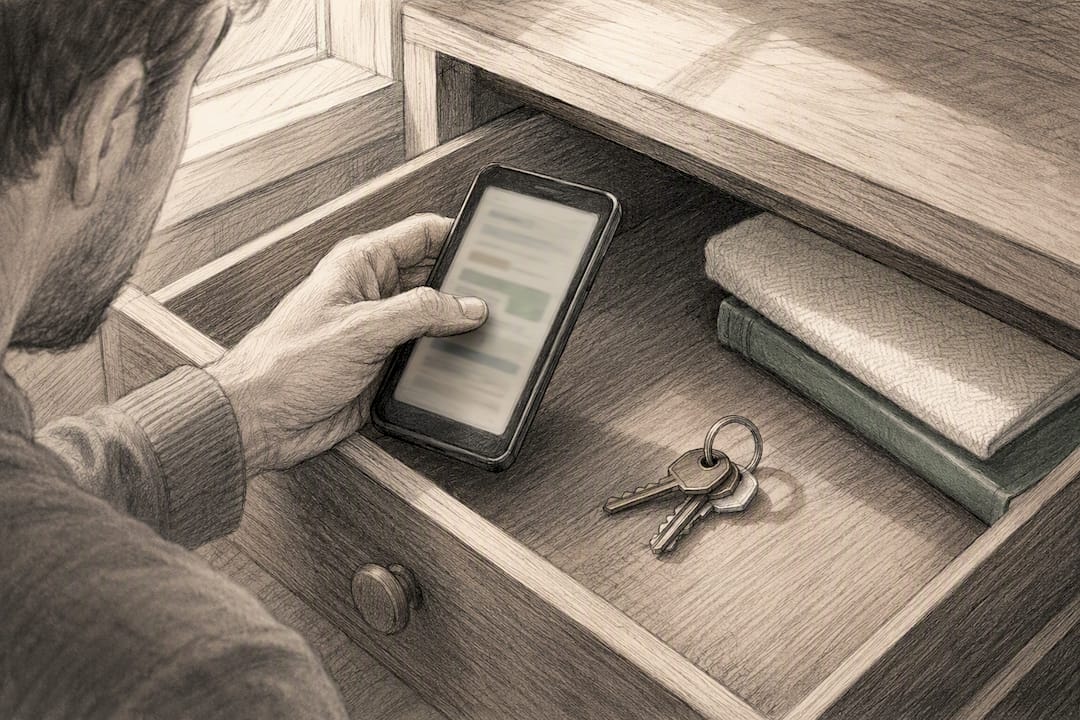
Old devices are the second trap. A phone you sold two years ago, or a calendar subscription you forgot about, can retain access long after you’ve moved on. Revoking access on one device doesn’t always clean up every synced copy sitting elsewhere.
Public calendars carry their own risk. Flip a calendar to public and its event titles and locations can become discoverable through search or third-party apps that scan public calendar feeds, not just to the audience you had in mind.
And plenty of oversharing is just habit. People default to “see event details” because it’s the first reasonable-sounding option, when free/busy would have covered the actual need.
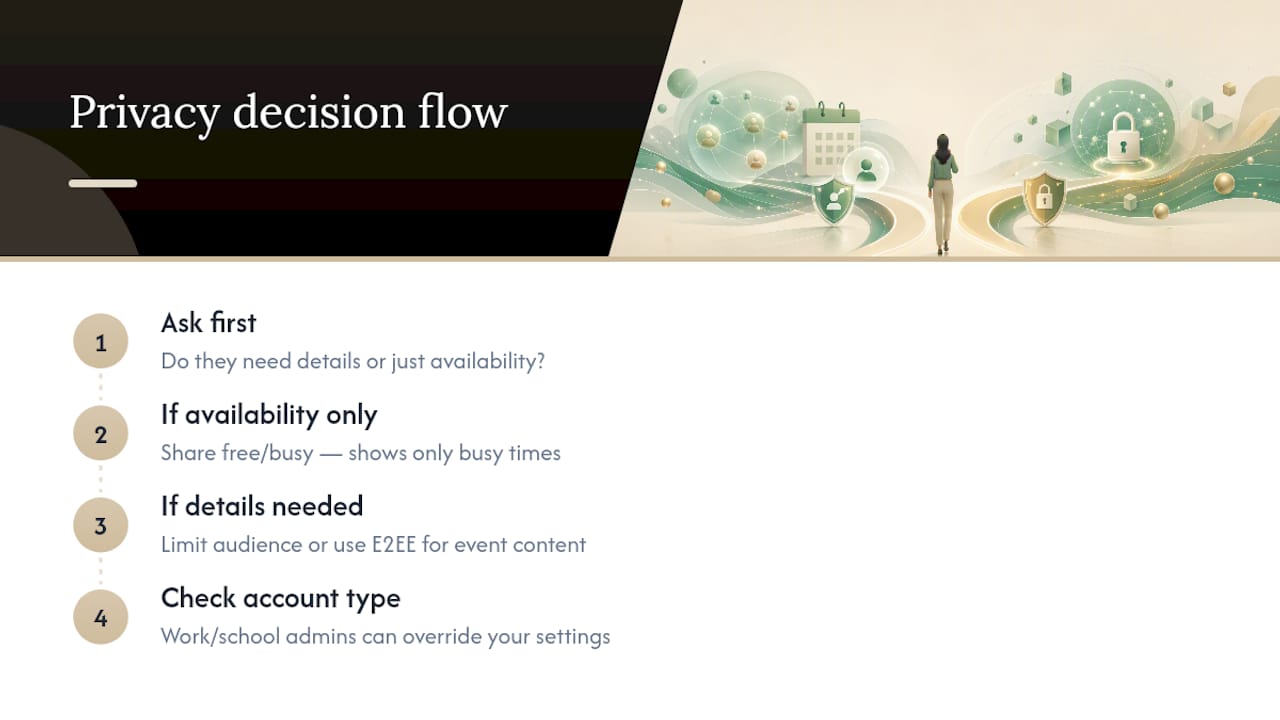
Pro Tip: Before sharing any calendar, ask yourself whether the recipient needs to know what you’re doing or just when you’re unavailable. If it’s the second one, free/busy is the correct answer almost every time.
Stronger Options: Encryption and Availability-Only Feeds
Standard calendar sharing on Google, Microsoft, and Apple was never built around the assumption that the platform itself shouldn’t be able to read your events. If that’s your bar, you need something built differently.
End-to-end encrypted calendars solve this at the architecture level. Services like Proton Calendar and Tuta encrypt event titles, descriptions, and attendee lists on your device before anything reaches their servers, and they share calendar keys only with the people you’ve explicitly authorized. Proton’s security model means the company itself cannot read your event content, even under a legal request. The trade-off shows up when you invite someone outside the encrypted system: bringing a non-encrypted guest into the loop usually requires a separate token or session-key exchange, and full interoperability with standard calendar invites is limited.
For simpler needs, availability-only feeds hit a practical middle ground. These publish nothing but blocked and open time slots, which is often exactly what a client or new contact needs to book a meeting without seeing your entire life on the calendar.
A few other tools to securely share documents to know about:
- Gated share links that require an email, password, or expiration date before granting access.
- Per-recipient links, so you can track and revoke one person’s access without touching everyone else’s.
- Audit logs that show who actually viewed your availability and when.
Auditing and Revoking Shared Calendar Access
A privacy fix isn’t done until you’ve confirmed it actually took effect. Here’s the sequence worth running:
- Open your “Shared with” list on every calendar you use and remove anyone who no longer needs access, including old collaborators or former clients.
- Turn off any “make available to public” or “make available to organization” toggle you don’t actively need switched on.
- Revoke connected apps or OAuth tokens tied to third-party scheduling tools, since removing a person from your platform’s sharing settings is the step that actually cuts off their access, not just deleting an old email thread about it.
- Ask former recipients to remove or unsubscribe from any calendar you shared with them, and force a resync on your own devices to confirm changes stuck everywhere.
- If a change won’t take, and you’re on a work account, IT policy is usually the reason. Ask your admin directly whether an organization-wide sharing policy is overriding your personal setting.
What I’d Set as Default
Set every calendar to free/busy visibility unless someone has a specific reason to see more. Mark anything sensitive, medical appointments, salary discussions, legal calls, as Private individually, even on a calendar you already trust. For scheduling with people outside your inner circle, an availability-only link beats a shared calendar every time, because it answers the only question most outsiders actually need answered: when are you free.
Reserve end-to-end encryption for calendars carrying genuinely sensitive or regulated information. That’s a narrower use case than most privacy guides suggest, but it’s the right one. An AI assistant like Otto that already tracks your calendar context can help flag when an event probably shouldn’t be shared as broadly as it currently is.
The Real Gap in Calendar Sharing Privacy
Most advice on this topic stops at “check your settings,” and that’s not wrong, it’s just incomplete. The setting you configure is a request, not a guarantee. On a personal Google or iCloud account, that request usually holds. On a work or school account, an administrator sits above it, and no amount of tightening your own sharing panel changes that.
The other gap is subtler: people treat calendar privacy as binary, shared or not shared, when the real spectrum runs from free/busy all the way to full end-to-end encryption. Most calendars don’t need the extreme end. A doctor’s appointment or a legal call might. Knowing which bucket your event falls into, and picking the matching level of protection, beats blanket paranoia or blanket carelessness every time.
If there’s one habit worth building, it’s this: before you share anything, ask whether the recipient needs details or just your availability. That single question resolves more privacy risk than any setting buried three menus deep.
— Eddie
Sources
- Share your calendar - Computer - Google Calendar Help
- Calendar sharing in Microsoft 365 – Microsoft Support
- How secure is Proton Calendar? - Proton Blog
- Sharing your Microsoft 365 calendar (ITS, University of Iowa)
FAQ
How Do I Make Sure My Calendar Is Private?
Set your sharing permission to free/busy instead of “see event details,” and mark individual sensitive events as Private. Remember that on a work or school account, your administrator may still be able to view calendar details regardless of your personal settings.
Can I Set Permissions on a Shared Calendar?
Yes. Google Calendar, Outlook, and iCloud all let you assign different permission levels to different people, ranging from free/busy only up to full edit and sharing management. Check each recipient’s permission individually rather than assuming one setting applies to everyone you’ve shared with.
How Do I Stop People From Accessing My Calendar?
Remove them directly from the calendar’s sharing list; on Google Calendar that’s the “Shared with specific people” section, and on Microsoft 365 it may require an owner or admin to update permissions through Outlook or backend tools. Deleting an old invite email does not revoke ongoing access.
How Do I Keep My iPhone Calendar Private?
Open the Calendar app, tap the calendar you want to protect, and adjust or remove each shared person’s permission individually, or choose “Stop Sharing” to end it entirely. Mark specific events as Private so they show only as busy time even to people with broader calendar access.