 Otto
OttoStop Calendar Overload: 4 Questions to Choose Calendar or Task List
Stop Calendar Overload: 4 Questions to Choose Calendar or Task List

A calendar answers “when,” a task list answers “what,” and the two work best as a pair, not rivals. Time-block a task only when it needs protected, uninterrupted hours or involves someone else’s schedule; otherwise leave it in the list, where priority and progress actually get tracked.
TL;DR:
- Schedule only tasks with fixed times or involving others on your calendar to prevent over-committing and ensure realistic capacity.
- Use task lists to manage priorities, subtasks, recurring work, and backlog without cluttering your calendar or losing sight of actions.
- Apply a four-question decision flow to assign new items correctly, separating fixed commitments, actionable tasks, deadlines, and reference materials.
- Follow a routine of capturing, clarifying, reviewing your calendar, prioritizing, blocking time for high-value tasks, and then executing to avoid overload.
- Incorporate specific, detailed action plans and time triggers to improve follow-through and prevent vague goals from stalling.
Table of Contents
- Calendar vs Task List: What Each One Actually Does Best
- When a Calendar-First or List-First Approach Helps (and When It Backfires)
- A Decision Tree for Where an Item Actually Belongs
- A Daily Routine That Uses Both Without Burning You Out
- Why Specific Phrasing and If-Then Plans Beat Willpower
- Why the Single Source of Truth Matters More Than the Tools You Pick
- A Simpler Way to Keep Calendar and Tasks in Sync
- Sources
- FAQ
Calendar vs Task List: What Each One Actually Does Best
A calendar exists to answer “when,” and it does that job well because time is finite and visible. It shows you meetings, travel, deadlines that double as appointments, and how much of your day is already spoken for. A task list exists to answer “what,” tracking the actions you still need to complete, broken into subtasks, recurring chores, and a backlog you haven’t gotten to yet.
The trouble starts when people ask one tool to do the other’s job. Cram every task onto the calendar and you get false precision: a schedule that looks full and organized but doesn’t reflect what’s actually urgent. Leave everything in a list with no calendar check and you get hidden overload: a plan that looks doable on paper because no one accounted for the four hours of meetings already booked.
Here’s the practical split:
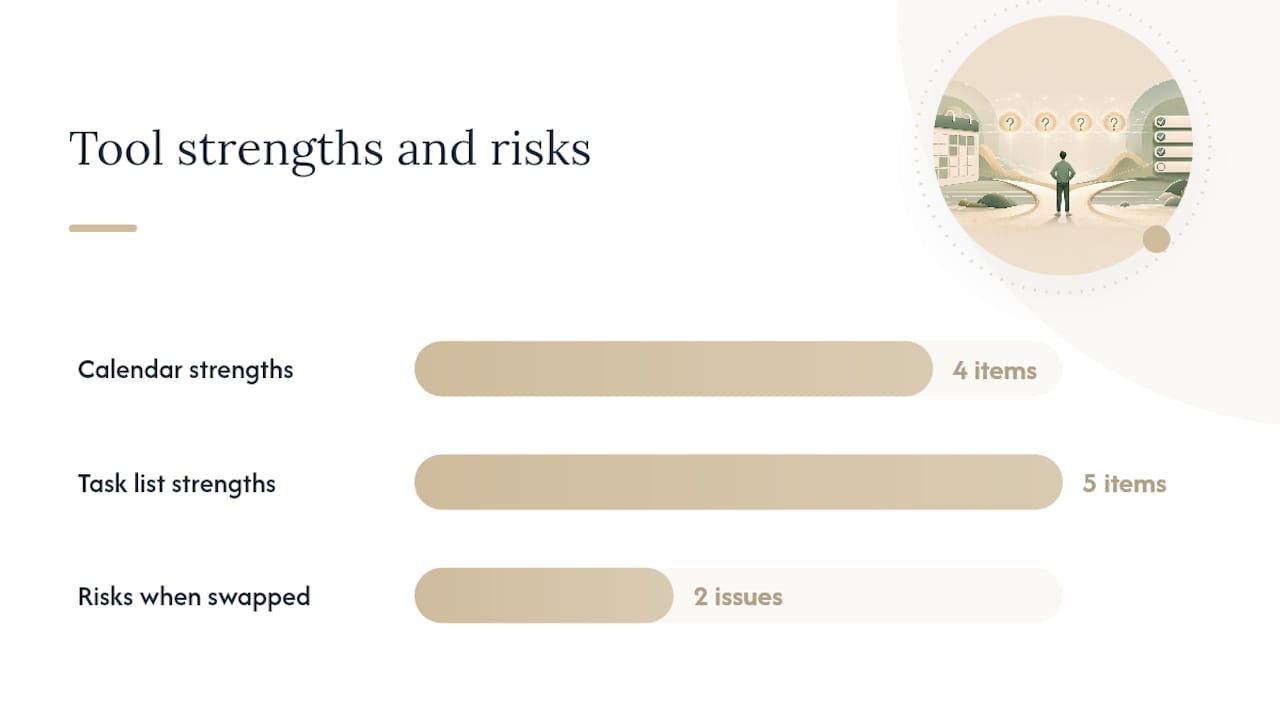
- Calendars excel at: capacity, coordination with other people, visible commitments, and the friction of travel or transitions between locations.
- Task lists excel at: prioritization, defining the next concrete action, managing subtasks, handling recurring work, and holding a backlog without losing it.
Neither tool is optional. A calendar without a task list hides your priorities. A task list without a calendar hides your actual bandwidth.
When a Calendar-First or List-First Approach Helps (and When It Backfires)
Some people default to calendar-first, blocking every task into a time slot. Some default to list-first, working straight down a prioritized queue and checking the calendar only when something dings. Both work in the right context and fail in the wrong one.
Calendar-first pros:
- Forces realistic capacity planning before the day starts.
- Protects deep work by physically reserving the hours.
Calendar-first cons:
- Turns into rigid overscheduling when tasks don’t need fixed timing.
- Falls apart the moment a meeting runs long.
List-first pros:
- Keeps priorities flexible as the day shifts.
- Handles a large backlog without cluttering the schedule.
List-first cons:
- Easy to lose track of how much time is actually left in the day.
- Tends to hide overcommitment until it’s too late to fix.
Pro Tip: If you notice the same task getting pushed to tomorrow more than twice, that’s not a scheduling problem. It’s a sign the task needs to be broken into a smaller, more specific action.
A hybrid becomes necessary the moment your week includes both fixed commitments and a growing backlog, which is most weeks for most people.
A Decision Tree for Where an Item Actually Belongs
Most calendar clutter and list paralysis trace back to one bad habit: dumping every new item into whichever tool is open. A short decision flow fixes that. Run each new item through these four questions, in order, and place it accordingly, following the same logic Ellie Planner uses to separate calendar items from task items.
- Does it reserve a fixed block of time, or involve someone else’s schedule? If yes, it’s a calendar event. Meetings, appointments, flights, and anything with another person waiting on you belong there.
- Is it a visible action you can complete on your own timeline? If yes, it’s a task. “Draft the client proposal” or “renew the domain” go into the list, not the calendar.
- Does it have a deadline but no fixed working time? This is the trap most people fall into. Don’t treat the deadline itself as an appointment. Keep the due date in the task system, then separately schedule the actual work session if the task is big enough to need one, per Scoro’s guidance on splitting deadlines from work sessions.
- Is it just a cue or reference material, not an action? Reminders handle time or location triggers (“call the pharmacy when you’re near it”). Notes hold reference information you don’t need to act on, like a contract clause or a parking code.
Run every new item through these four questions and you eliminate most of the duplication between your calendar and your list before it starts.
A Daily Routine That Uses Both Without Burning You Out
The workflow that keeps calendars and task lists from fighting each other follows a fixed sequence: capture, clarify, review, choose, block, execute, review again. Skip a step and one tool starts absorbing the other’s workload.
- Capture everything, everywhere, into one task system. Emails, meeting notes, half-formed ideas. Nothing gets triaged yet.
- Clarify each captured item into a specific next action. “Marketing stuff” becomes “send the three headline options to Dana for approval.”
- Review the calendar first, before touching the task list. You need to see fixed commitments and actual open hours before you promise yourself anything.
- Choose one to three priorities for the day. Time-block only the ones that genuinely need protected, uninterrupted time.
- Execute from the task list, not the calendar. The calendar shows you where the gaps are; the list tells you what fills them.
- Review again at day’s end, and reschedule anything unfinished instead of letting it silently roll over.
Pro Tip: Check your calendar before you build your task list for the day, not after. Committing to priorities before you know your actual capacity is how overload happens.
This sequence mirrors the structured follow-through plan Harvard Business School researchers found more effective than vague scheduling, and productivity writers at outlets like MacSparky make the same case: don’t calendar every task, just the ones that need protected time or a hard deadline.
Why Specific Phrasing and If-Then Plans Beat Willpower
Vague intentions fail quietly. “Work on the report” sits on a list for days because your brain has no trigger to act on. Research on implementation intentions, the if-then planning method studied by Gollwitzer and Brandstätter, found that specifying exactly when and where an action will happen creates a contingent trigger that automates the start of the task, rather than leaving it to willpower in the moment.
“I will do X when situation Y arises” outperforms a general goal because the plan itself becomes the cue. You’re not deciding whether to start; you already decided last week.
That’s why phrasing matters as much as placement. A task written as “pricing” gives your brain nothing to act on. A task written as “draft the three pricing options for the Henderson account” has a visible finish line, a pattern Microsoft’s own To Do integration is built around, with steps and notes attached to each concrete action. Separate the deadline from the scheduled work, and run a quick capacity check before committing to today’s list. That single habit catches most overload before it happens.
Why the Single Source of Truth Matters More Than the Tools You Pick
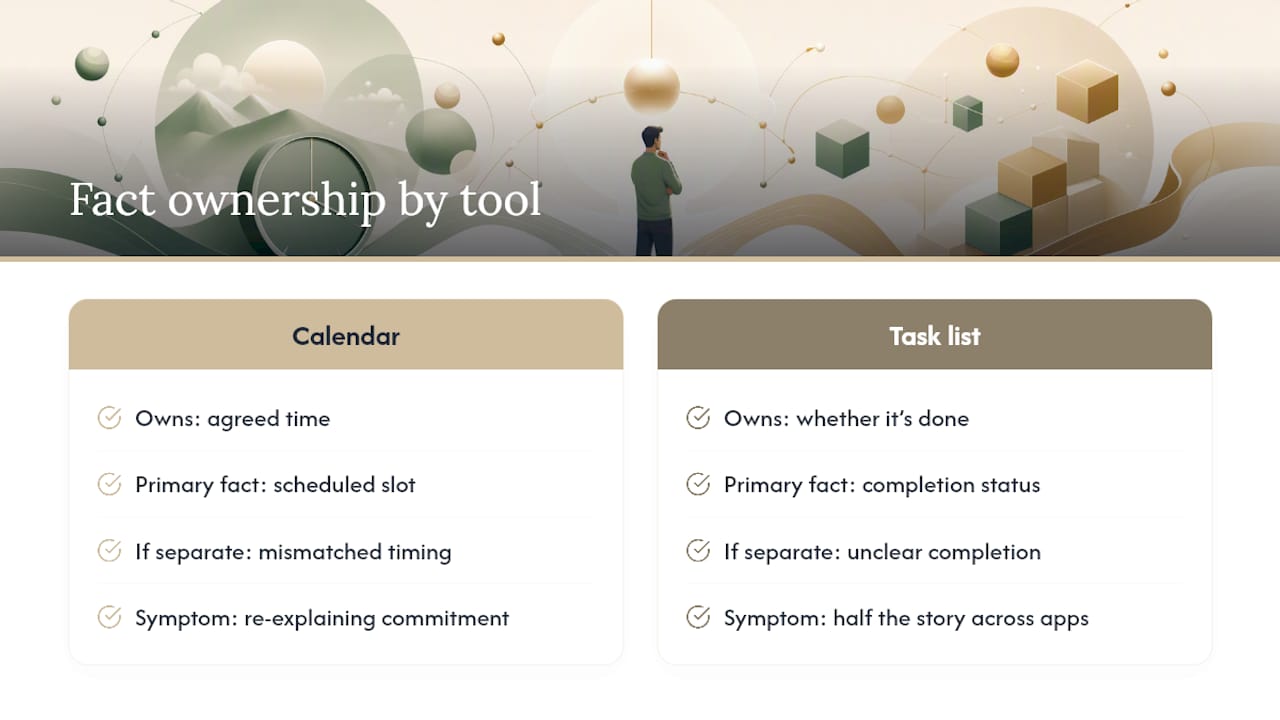
The real shift isn’t switching from a calendar to a list or back. It’s accepting that each tool owns a different fact, and letting drift between them creep in is what actually causes missed commitments. A calendar owns the agreed time. A task list owns whether something got done. When those two facts live in different apps that never talk to each other, you end up re-explaining the same commitment three times a week, once to your calendar, once to your list, and once to yourself when you can’t remember which one is current.
That’s the scattered-context problem in miniature: not too many tasks, but too many places holding half the story.
— Eddie
A Simpler Way to Keep Calendar and Tasks in Sync
Otto is built around the exact problem this article just walked through: your calendar, your inbox, and every promise made on a call are usually scattered across tools that never talk to each other, so you end up holding the connections in your head. Otto is designed to unify context from your work across multiple tools.

It processes information from meetings, email, and calendar to log commitments into a single ledger it tracks until closure. By integrating multiple sources, it can help surface capacity and requires user approval before sending any communications.
If you’re tired of being the one who copies context between your calendar and your task app by hand, start with the Free plan and see what a single source of truth actually feels like. Upgraded runs $20 a month, and Max runs $50 a month, both detailed on Otto’s plan page.
Sources
- Difference between Calendar and Tasks – Scoro Help Center
- Calendar or To Do List? Two task management tools compared – Work Awesome
- Beyond good intentions: Prompting people to make plans improves follow-through (HBS working paper)
- Create and manage task lists with To Do in Outlook – Microsoft Support
- Calendar vs. To-Do List: What Belongs Where? – Ellie Planner
FAQ
What is the 3-3-3 rule for tasks?
The 3-3-3 rule suggests spending three hours on your most important task, three hours on smaller tasks, and three hours on maintenance items like email. It’s a rough daily allocation, not a strict scheduling system, so it pairs well with checking your calendar first for fixed commitments before blocking those hours.
Does Outlook calendar have a task list?
Yes. Outlook integrates Microsoft To Do, which includes due dates, reminders, steps, and a “My Day” view that shows tasks alongside your calendar without merging the two into one record.
What is the best way to keep track of tasks and your calendar?
Use one system for capture and clarification, check the calendar before committing to priorities, and time-block only the tasks that need protected hours. Tools that unify calendar and task data in one place, such as Otto, remove the manual step of cross-checking two separate apps.
What is the 1/3/5 rule for tasks?
The 1/3/5 rule structures a daily list as one big task, three medium tasks, and five small tasks, giving you nine total items instead of an open-ended backlog. It works best after you’ve already reviewed your calendar, since a day full of meetings can’t realistically absorb nine additional tasks.