 Otto
Otto3 Outlook Methods to Convert Emails to Tasks When Inboxes Multiply
3 Outlook Methods to Convert Emails to Tasks When Inboxes Multiply

The fastest way to convert an email to a task is Outlook’s built-in Create Task or drag-to-Tasks feature; for anyone juggling multiple accounts or repeated request emails, an add-in or automated flow does the heavy lifting instead. Below you’ll find the exact clicks for native Outlook, when to automate instead, and where a tool like Otto fits once your commitments outgrow one inbox.
TL;DR:
- Auto-extract tools like MailOver can misread dates or priorities, so testing automation in suggestion mode for at least five days is essential.
- Creating clear, actionable task titles with specific next steps and deadlines significantly increases the likelihood of completing those tasks on time.
- Sharing a single ledger that captures commitments across email, calendar, and meetings ensures nothing slips through the cracks in busy workflows.
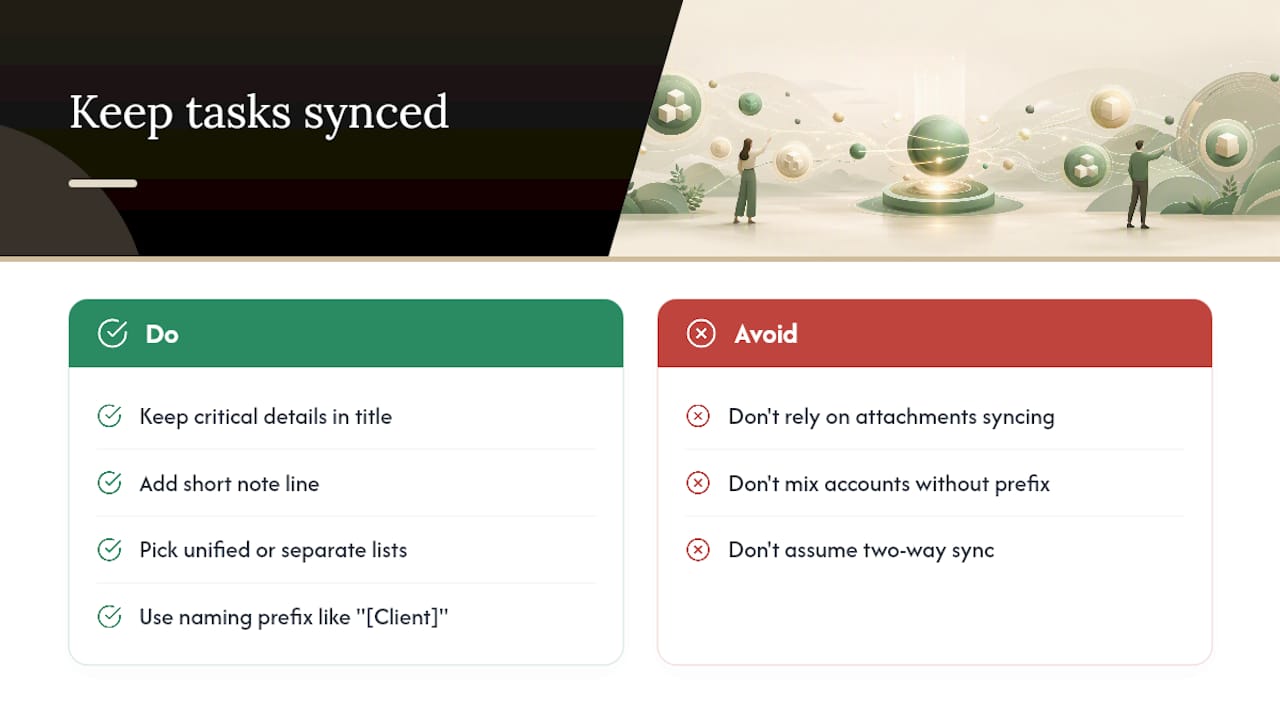
- Syncing tasks across devices is reliable with Microsoft To Do for text and due dates but less so for attachments and notes, so keep critical info in the title or short notes.
- Selecting only action-required emails for conversion and linking back to the original message prevents clutter and maintains useful context.
Table of Contents
- How Do You Convert an Email to a Task in Outlook?
- When Should You Automate Email-to-Task Conversion?
- How Do You Write Task Titles That Actually Get Done?
- Why Consider Otto for End-to-End Action Capture?
- How Do You Keep Converted Tasks in Sync Across Devices?
- Can You Convert Emails to Tasks in Gmail and Apple Mail?
- What Mistakes Ruin an Email-to-Task Workflow?
- When Should You Automate vs. Keep It Manual?
- Try Otto to Automate Email-to-Task Capture
- Sources
- FAQ
How Do You Convert an Email to a Task in Outlook?
Outlook gives you three native paths to turn a message into a task, and each one behaves slightly differently depending on where you’re working.
- Drag the email to the Tasks pane. In classic Outlook on Windows, drag the message onto the Tasks icon in the navigation pane and it opens a new task window with the email’s subject as the title and a link back to the original message already attached. Microsoft’s own guide walks through this exact motion, and it’s still the quickest single move for anyone working from one account.
- Right-click and choose Create Task. Right-click the message, go to Advanced Actions, then Create Task (or, on some builds, “Save to Microsoft To Do”). The subject line, sender, and body preview copy into the task notes automatically, which saves you from retyping context.
- Build a Quick Step. Set up a Quick Step that flags the email, moves it to a folder, and creates a task in one click. This is worth the five minutes it takes to configure if you process the same type of request weekly, like invoice approvals or client status checks.
New Outlook and the web version work a bit differently: you drag a message and drop it directly into the Tasks list, then check My Day to see what landed. Microsoft’s drag-to-task documentation covers both the desktop and browser flows if your interface looks unfamiliar.
Sync between Outlook and Microsoft To Do is close to instant. Tasks you create in Outlook show up on your phone’s To Do app within seconds, but the reverse isn’t always true. Notes and attachments sometimes stay in the desktop client only, so if you rely on your phone for daily task review, keep the essential context in the task title itself, not buried in an attachment you won’t see until you’re back at your desk.
When Should You Automate Email-to-Task Conversion?
Manual capture works fine until your inbox stops being one inbox. Once you’re managing two or three email accounts, fielding the same kind of request from a dozen different senders, or trying to track who owes you a reply across a week of scattered threads, dragging messages one at a time stops scaling.
Three automation patterns cover most of what people actually need:
- Add-in button capture. A one-click add-in creates a task with the email link, sender, and subject prefilled, saving the manual drag or right-click without changing your workflow much.
- Auto-extract tools. Some inbox tools scan message text for action language and dates, then suggest or auto-create tasks with due dates attached. MailOver’s action items feature works this way across Gmail, Outlook, and IMAP accounts, pulling deadlines straight out of the email body.
- Forwarding or pipe-to-address setups. You forward a message to a dedicated address and a task or project system creates the item automatically. Tools like Taskade support this for teams that want tasks landing in a shared board rather than a personal list. Power Automate can also build custom flows if you want conditional logic, like routing invoice emails to one list and client requests to another.
The trade-off across all three is accuracy versus control. Auto-extract tools occasionally misread a due date, especially when the email says something relative like “by Friday” and the sender is in a different time zone than you are. Testers of tools like MailOver have flagged exactly this kind of date-parsing issue during setup, which is why suggestion mode beats auto-create until you’ve watched it run for a week.
Pro Tip: Run any new automation in suggestion mode for at least five business days before letting it auto-create tasks. You’ll catch misfired due dates and mislabeled priorities before they clutter your list.
How Do You Write Task Titles That Actually Get Done?
A task titled “Re: Budget” tells you nothing three days from now. Rename every converted task to the specific next action before you close the window. Zen Habits makes this point well: turn “Re: Budget” into “Review Q3 budget draft and send comments”, and the task becomes something you can act on without reopening the original thread to remember what it meant.
Three habits make the difference between a task list you trust and one you avoid:
- Add a due date or a “waiting on” tag every time, even a rough one, because an undated task is easy to ignore indefinitely.
- Paste the email link into the task notes so the full context is one click away instead of a inbox search.
- Create a task from your own sent email when you’re expecting a reply, with a follow-up date set for a few days out.
Zen Habits also recommends a two-pass processing routine: a fast first pass where anything answerable in under two minutes gets handled and archived immediately, followed by a short scheduled session where you convert what’s left into properly named, dated tasks. Trying to do both at once, replying and organizing in the same pass, is what turns inbox time into an hour-long slog.
Why Consider Otto for End-to-End Action Capture?
Native Outlook methods and add-ins solve the mechanics of moving an email into a task. They don’t solve what happens when a commitment gets made on a call, referenced in a meeting, and then buried under twelve more emails before you write it down.
Otto works from one shared memory across email, calendar, and meetings, so a promise made out loud doesn’t disappear the moment the call ends.
- It listens in meetings and reads your email and calendar, capturing commitments from any of them into a single ledger it tracks until closed.
- Because it sees everything at once, it can surface a prioritized focus each morning instead of leaving you to reconstruct it from three separate tools.
- Nothing goes out without your approval. Otto drafts follow-ups and reminders; you decide what actually gets sent.
For founders, operators, or chiefs of staff whose commitments live across a dozen apps, that single ledger replaces the mental work of remembering which tool holds which promise.
How Do You Keep Converted Tasks in Sync Across Devices?
A task you create on your laptop is only useful if it shows up on your phone before you leave the building. Microsoft To Do syncs task text and due dates near-instantly across Outlook desktop, the web, and mobile, but attachments and long notes don’t always travel with it, so keep critical details in the title or a short note line rather than a linked file.
If you split work across a personal and a work account, decide early whether tasks live in one unified list or stay separated by account. Mixing them without a naming convention (a simple prefix like “[Client]” or “[Personal]” works fine) turns your task app into a second inbox you have to sort through.
Cross-platform syncing gets trickier once a third tool enters the picture, like a project board or a to-do app outside the Microsoft ecosystem. Check whether that tool pulls tasks in through a native integration or requires manual forwarding. A one-way sync, where tasks flow into the second tool but changes there don’t flow back, is common and worth confirming before you rely on it for anything time-sensitive.
Set a weekly five-minute check: open your task list on your phone and confirm today’s items match what you set on desktop. It catches sync gaps before they cost you a missed deadline, and it takes less time than most people spend deciding what to have for lunch.
Can You Convert Emails to Tasks in Gmail and Apple Mail?
Outlook isn’t the only inbox with a built-in task shortcut. Gmail lets you select a message, click the “Add to Tasks” icon in the right-hand panel, and it creates a task linked back to that email, viewable in Google Tasks on any device. The task title defaults to the subject line, so the same renaming habit applies here.
Apple Mail takes a different route. There’s no native “create task” button, but you can drag an email directly onto the Reminders app icon in the dock, or use the built-in Reminders integration through the Share sheet, which creates a reminder with a link back to the message. Some people set up a Shortcuts automation to route flagged emails into a specific Reminders list automatically.
Inbox-as-workspace tools have also expanded around Gmail specifically. Sortd, for example, turns your inbox into draggable boards where you can rename items, set due dates, and plan your day without leaving the mail client, similar in spirit to what Outlook’s Quick Steps do but with a visual board layout.
Whichever client you use, the underlying principle doesn’t change: capture fast, rename to the actual next action, and make sure the task carries enough context that you don’t have to reopen the original email to remember why it exists.
What Mistakes Ruin an Email-to-Task Workflow?
The most common failure isn’t a missing feature. It’s converting every email into a task instead of only the ones that need action, which buries real to-dos under FYI clutter and newsletter noise. Be selective before you convert; if it doesn’t require you to do something, it doesn’t belong on the list.
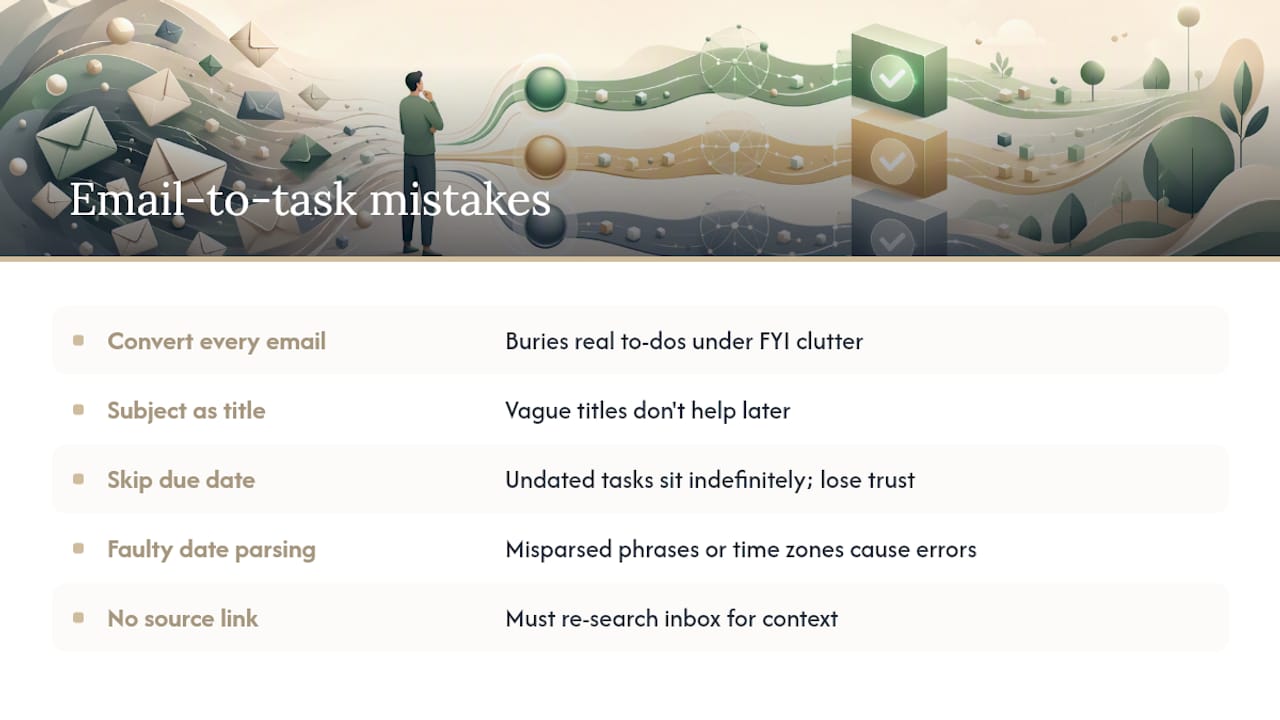
A second frequent mistake is leaving the task titled after the email subject. “Meeting notes” and “Following up” tell you nothing a week later, which is exactly the problem the rename-to-next-action habit fixes.
Skipping a due date is the third. An undated task sits at the bottom of the list indefinitely, and you eventually stop trusting the list altogether, which defeats the purpose of converting the email in the first place.
Fourth, if you’re using an automation that scans for dates in email text, verify how it parses phrases like “end of week” or “by Wednesday” during setup rather than after it’s already misfired a few times. Time zone mismatches between sender and reader are a known source of these errors.
Last, forgetting to link back to the source email means you’re re-searching your inbox later to recover context you already had in front of you once. Whatever method you use, native or automated, the link back to the original message is not optional.
When Should You Automate vs. Keep It Manual?
If your email volume is light and requests are straightforward, stick with manual Outlook capture plus a disciplined two-pass routine. It’s fast, private, and needs nothing new to learn.
Once you’re seeing repeated request patterns across a busy inbox, try an add-in or a flow in suggestion mode first, before trusting it to auto-create anything. If your real problem is commitments scattered across email, meetings, and calendar with no single place tracking them, that’s when a unified approach like Otto earns its place. A useful test: run one automation rule for two weeks and measure how many follow-ups actually got completed on time.
— Eddie
Try Otto to Automate Email-to-Task Capture
Some tools aim to replace juggling multiple apps for the same commitment by consolidating email, calendar, and meetings into one shared memory, so a commitment made anywhere gets captured once and tracked until it’s closed.

Such tools can listen in meetings, read your inbox and calendar, and build a single ledger of what you owe and what’s owed to you, then provide a prioritized focus each morning instead of requiring you to piece it together from separate sources. Nothing goes out without your sign-off; drafts are prepared for your approval. If you want a broader look at combining email automation with other channels, this piece on automating LinkedIn and email together covers adjacent patterns worth knowing.
Otto offers Free, Upgraded, and Max plans at Ottohq. Start with the free plan and see how far a single shared memory takes your follow-through.
Sources
FAQ
Can you turn an email into a task in Gmail?
Yes. Select the email, click the Tasks icon in Gmail’s side panel, and choose “Add to Tasks.” The task links back to the original message and syncs to Google Tasks across devices.
How do I move an email to Tasks in Outlook?
Drag the message onto the Tasks icon in the navigation pane on Windows, or drag it into the Tasks list in new Outlook and check My Day to confirm it landed. Microsoft’s official guide walks through both versions.
How do I save an Outlook email as a task?
Right-click the email, select Advanced Actions, then Create Task, and the subject and body preview copy into the new task automatically. You can also drag the email directly onto the Tasks pane for the same result.
How can I convert an email to a Planner task?
Outlook doesn’t offer a one-click Planner conversion natively, so most people forward the email’s key details into a new Planner task manually or use a Power Automate flow to route flagged messages into a Planner bucket automatically.
Does Otto replace Outlook’s task features?
Otto isn’t a replacement for Outlook’s native tools. It sits alongside your inbox and calendar, capturing commitments from email, meetings, and calendar events into one ledger so nothing gets lost between tools you’re already using.