 Otto
OttoPrevent Slack Spam: 4 Secure Ways to Forward Email to Slack
Prevent Slack Spam: 4 Secure Ways to Forward Email to Slack
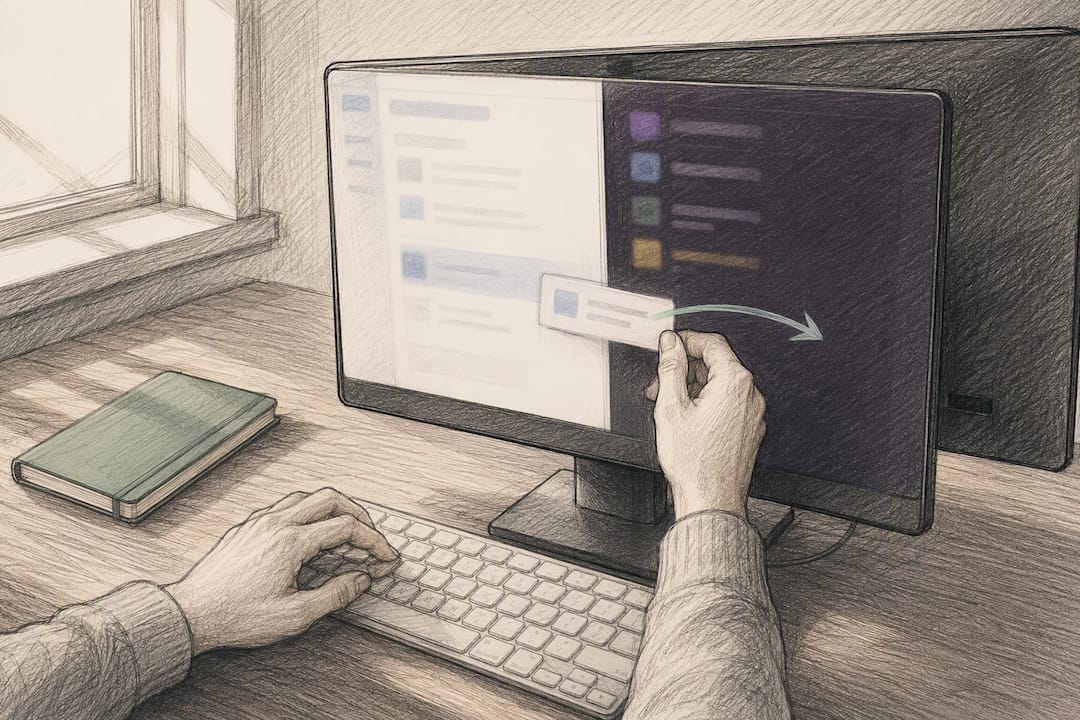
You have four real options: Slack’s personal forwarding address through Slackbot, a dedicated email address for a channel or DM, the Gmail/Outlook add-ons, or the admin-installed Email app. For solo triage, grab your Slackbot address. For a shared inbox like invoices or alerts, create a channel address. For one important message that needs team eyes, use the add-on. Just check with your admin first, since incoming email settings and size limits can quietly block delivery.
TL;DR:
- Using a Slackbot address is fastest for personal, low-stakes forwarding but should be limited to specific filters to avoid turning Slack into an inbox.
- Creating channel addresses is ideal for shared teams, but permissions and domain allowlists are essential to prevent spam or unauthorized access.
- Gmail and Outlook add-ons enable quick, contextual email forwarding without setting up permanent addresses, suitable for urgent messages needing team review.
- The Email app is suited for large teams, centralizing routing, and offering visibility, but typically requires admin installation and strict management.
- Size limits for forwarded emails are approximately 30 MB including attachments, so large files should be linked via cloud storage instead of direct upload.
Table of Contents
- Which method to use for forwarding email to Slack
- How to get a Slackbot forwarding address for your DMs
- How to create an email address for a Slack channel or DM
- Using Gmail and Outlook add-ons to send emails to Slack
- What the Email app does differently
- Admin controls and security checklist for email-to-Slack
- How big can a forwarded email or its attachments be?
- Why isn’t my forwarded email showing up in Slack?
- Team workflows and best practices for forwarding email into Slack
- What I’ve noticed about forwarding email into Slack
- A different way to handle email without the forwarding rules
- Sources
Which method to use for forwarding email to Slack
Each method solves a different problem, and picking the wrong one wastes time or creates a mess in a channel someone actually cares about.
- Slackbot personal forwarding address: best for routing your own newsletters, receipts, or FYI emails into a private DM with yourself. Available on all plans; no special permission needed unless an admin has restricted it.
- Channel or DM email address: best for shared inboxes like billing or support alerts. Requires permission to create addresses, which admins can lock down.
- Gmail/Outlook add-ons: best for one-off emails you want a team to see and discuss. Free to install, works on any plan that allows incoming email.
- Email app: best for larger teams that need centralized routing and reporting. Usually requires admin installation.
Here is the catch with all four: anyone who gets hold of a generated address can email it, and Slack will post it. There is no built-in sender verification unless your workspace admin sets up a domain allowlist. If you do not have permission to create addresses or you are unsure whether incoming email is even enabled, skip ahead to the admin controls section before you spend time setting up forwarding rules that will just bounce.
How to get a Slackbot forwarding address for your DMs
This is the fastest setup of the four, and it lives entirely inside your Slack account. According to Slack’s own documentation, the process runs like this:
- Open Preferences, then go to Messages & media.
- Scroll to Bring emails into Slack and select Get a forwarding address.
- Copy the generated email address.
- In Gmail, go to Settings → Forwarding and POP/IMAP, add the address, and confirm the verification email Slack sends. In Outlook, set up an inbox rule that forwards matching messages to that same address.
Use this for personal, low-stakes forwarding. Reserve a channel address (covered next) for anything a team needs to see together.
Pro Tip: Do not forward your entire inbox this way. Create a Gmail filter that only forwards specific senders or subject lines, otherwise your Slack DM turns into a second unread inbox nobody checks.
How to create an email address for a Slack channel or DM
When a whole team needs visibility, a channel address beats personal forwarding because everyone sees the same thread instead of relying on one person to relay it.
- Open the channel or conversation you want emails to land in.
- Click the channel or member name at the top, then go to Integrations.
- Select Send emails to this channel (or conversation) and click Get Email Address.
- Copy the address and give it to whoever needs to send to it. Slack outlines this exact flow in its email-to-Slack guide.
Typical setups: an invoices@ alias routed to a #finance channel, or a monitoring tool’s alert emails landing in #ops.
Pro Tip: Pin the address as a message in the channel itself. It saves you from re-explaining “what’s the email for this channel again?” every few weeks, and it gives new hires one obvious place to look.
Treat address creation as a permission, not a default. Restrict who can generate new ones and apply a domain allowlist so random senders cannot post into a client-facing channel.
Using Gmail and Outlook add-ons to send emails to Slack
Sometimes you do not want a standing address at all. You just want to push one email into a channel, add a quick note, and move on. That is exactly what the Slack for Gmail add-on is built for.
- Install the add-on from the Google Workspace Marketplace (Outlook has an equivalent through its add-in store).
- Open the email, click the Slack icon in the sidebar, and choose Send to Slack.
- Pick the destination channel or DM, add a short comment for context, and send.
- Attachments travel with the message, unlike some forwarding setups that strip them.
This is the right call for an important vendor email or a client escalation that needs a team’s eyes right now, without creating a permanent address that outlives its purpose.
What the Email app does differently
The Email app is the option built for scale, not for one person’s inbox. Instead of a dozen employees each generating their own forwarding address, an admin installs the app once and manages routing centrally.
- Routes multiple inboxes into the right channels from a single, admin-controlled setup.
- Gives visibility into what is being forwarded where, which matters for governance in larger organizations.
- Fits teams that need multi-channel distribution or reporting rather than ad hoc forwarding, a pattern communications teams increasingly favor over dozens of disparate addresses.
- Generally requires admin permissions to install and configure, and availability can depend on your Slack plan.
If your workspace already has five different alerts@ addresses floating around with no owner, that is usually the sign it is time to switch to this model.
Admin controls and security checklist for email-to-Slack
Before anyone on your team spends an hour setting up forwarding rules, an admin should confirm these settings are actually configured to allow it.
- Go to Admin → Workspace settings → Incoming emails and confirm the feature is turned on. Slack notes that if it is disabled workspace-wide, every forwarded email will simply reject.
- Decide who is allowed to generate new channel or personal addresses, and restrict that permission to a handful of trusted people.
- Build a domain allowlist so only approved sending domains reach your channels.
- Keep a running log of which addresses exist, who owns them, and what they are for.
Pro Tip: Rotate the address for anything sensitive, like a finance or legal inbox, every few months. It is a small habit that closes off a leaked address before it becomes a real problem.
How big can a forwarded email or its attachments be?
Size limits are the quiet reason a “working” setup suddenly stops delivering. The Slack for Gmail add-on caps combined headers and body at 1 MB, total message size including attachments at 30 MB, and 20 attachments per email.
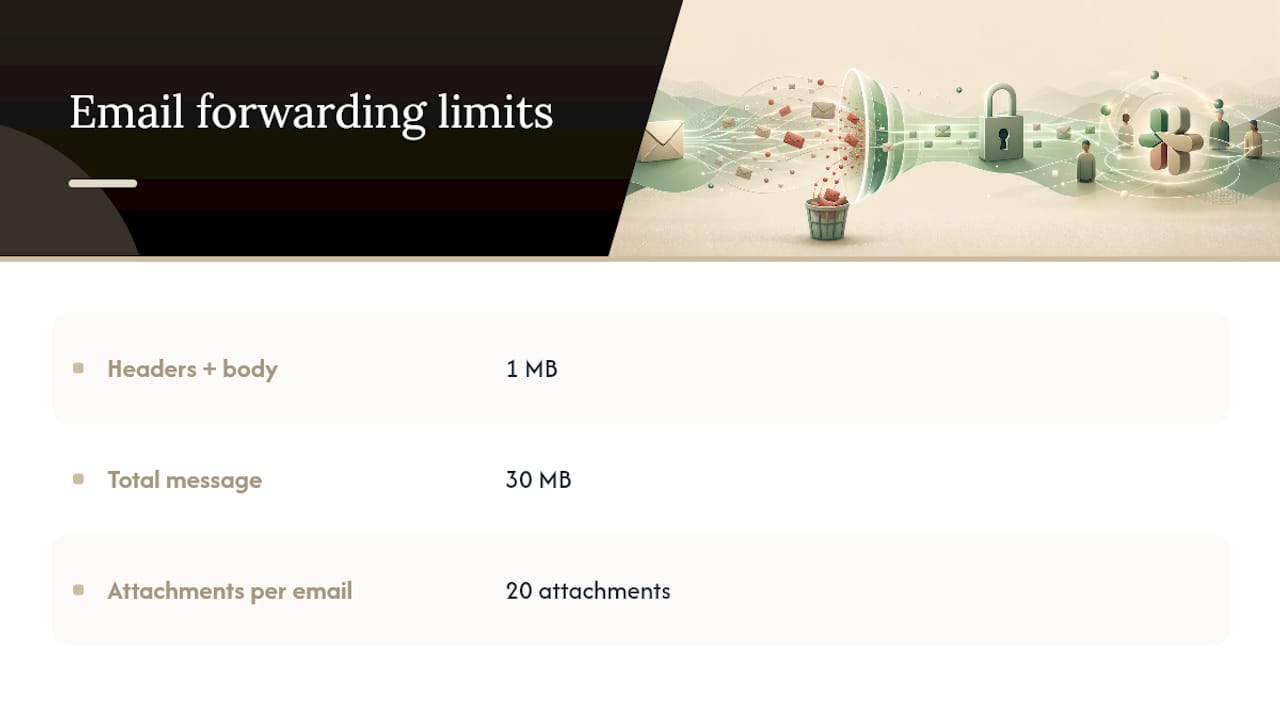
A large PDF report or a photo-heavy update will blow past that fast. The workaround is simple: drop the file in cloud storage and forward the link instead of the file itself. Limits can vary slightly between the add-ons, channel addresses, and the Email app, so if one method keeps failing on the same message, try another before assuming something is broken.
Why isn’t my forwarded email showing up in Slack?
Work through these in order before escalating to an admin:
- Confirm the forwarding address or add-on destination is typed correctly. A single typo sends the message nowhere.
- Check whether incoming emails are disabled for the workspace, and confirm the domain allowlist includes your sending domain.
- Look for a bounce message in your sending mailbox. It usually tells you exactly what Slack rejected.
- Verify the channel address still exists. Admins can delete or rotate them without warning.
- When you escalate, bring the exact error message, a timestamp, and a sample email. It saves the admin a round of guesswork.
Team workflows and best practices for forwarding email into Slack
The setups that hold up over time share a few habits. Restrict who can create new addresses, and give each one a clear, single purpose: invoices@ for billing, alerts@ for monitoring, never a catch-all.
- Pin the address inside the channel and note who owns it.
- Rotate addresses tied to sensitive data on a schedule, not just after an incident.
- Route legacy monitoring tools that only support SMTP notifications, like Prometheus or Grafana, straight to a channel address as a practical stand-in for a webhook.
- Keep a “deal with later” personal DM lane for low-priority forwards so they never touch a team channel.
Teams handling client communication sometimes formalize this further with automated routing rules that sort inbound messages before they ever hit Slack.
Pro Tip: If you are forwarding invoices, name the address after the process, not the department. “billing-intake@” survives a reorg. “sarahs-inbox@” does not.
What I’ve noticed about forwarding email into Slack
Forwarding email into Slack genuinely cuts context switching when the use case is narrow: one alert stream, one invoice inbox, one important thread that needs a team’s eyes. It falls apart the moment it becomes a dumping ground. Channels fill with noise, attachments go missing depending on the method, and nobody remembers who owns which address six months later.
The deeper issue is that email forwarding treats Slack as a mailbox rather than a workspace. It moves the message but not the context around it, the calendar conflict, the commitment made on a call last week, the related thread from three weeks ago. Tools that hold email, calendar, and meeting context in one place solve a different problem than forwarding ever could.
— Eddie
A different way to handle email without the forwarding rules
An AI assistant is designed to address the exact friction that email forwarding tries to patch over. Instead of creating multiple channel addresses and hoping nobody forwards to the wrong one, this assistant keeps email, calendar, and meeting commitments in one shared memory, so nothing has to be manually routed or re-explained to a channel that will not remember it next month.

That matters most for founders, chiefs of staff, and operators juggling promises made over email, on calls, and in meetings, where the real cost isn’t missing a message, it’s losing track of what you agreed to do about it. This assistant surfaces what actually needs your attention today instead of dumping everything into a channel and hoping someone notices. Nothing goes out without your approval; drafts are provided for your decision. If your forwarding rules have started to feel like a second job, try Otto and see what a single shared memory across your inbox and calendar actually does for your day.