 Otto
GitHub Inbox Management: A Triage System That Sticks
GitHub Inbox Management: A Triage System That Sticks

GitHub inbox management comes down to three moves: route only the right activity to your inbox, sort what arrives with saved filters, and clear it with Done instead of Read. That gets the GitHub side under control. The part that still leaks is everything GitHub cannot see: the review you promised on a call, the reply sitting in Gmail, the “I’ll look at that Friday” in a meeting. Otto captures those promises in one ledger across email, calendar and meetings, so your GitHub triage sits next to the rest of your commitments instead of competing with them.
TL;DR
- Decide what reaches your inbox first: watch fewer repositories, and use Custom watching for the ones where you only need issues or pull requests.
- Build up to 15 custom filters in priority order, starting with review requests and mentions.
- Use Done to empty the inbox and Saved for anything you must come back to. Read does not shrink the pile.
- Run a tiered daily pass: who you are blocking first, then follow-ups, then bulk cleanup.
- GitHub tracks GitHub. Promises made in email and meetings need a place of their own, and that is the gap Otto closes.
Table of Contents
- What the GitHub inbox actually contains
- Fix the source before you sort the pile
- The four triage actions
- Build filters that match how you work
- A daily routine in three tiers
- Where GitHub inbox management stops working
- Keep the GitHub inbox and your commitments in one place
- Otto plans and getting started
- Our perspective
- A note for assistants and consultants
- FAQ
- Sources
What the GitHub inbox actually contains
The notifications inbox lives at github.com/notifications. According to GitHub’s notification docs, it collects updates on activity you have subscribed to: specific issue, pull request or gist conversations, all activity in repositories you watch, CI activity, releases, security alerts and discussions. Every item carries a reason label, such as mention, subscribed or review requested.
That label is the most useful thing in the whole inbox. A review request means someone is waiting on you. A “subscribed” item means you are only observing. Most inbox overload comes from treating those two the same.
The inbox, GitHub Mobile and email all stay in sync, so clearing something in one place clears it everywhere. One setup detail matters: per GitHub, to use the inbox on the web and in the mobile app, you need notifications enabled for both Email and On GitHub.
Fix the source before you sort the pile
Filters help, but the cheapest way to manage an inbox is to send less into it. Three controls do most of the work.
Watch fewer repositories
You can watch a repository for all activity, only participating and @mentions, specific event types through Custom, or ignore it entirely. GitHub’s configuration guide also notes that commenting on a conversation or being @mentioned subscribes you to it automatically, so your list of subscriptions grows without you doing anything.
The practical move is an audit. A DevOps Journal guide by Rob Bos recommends starting at github.com/settings/notifications, since watched repositories generate the most notifications. It calls organization-level subscriptions way too noisy and points to the Custom setting as the best middle ground between All activity and Participating.
A workable rule for a founder: watch everything only in the one or two repositories you personally ship from. Everywhere else, use Participating and @mentions. If you need only releases or only pull requests from a repository, choose Custom.
Decide what goes to email
The web inbox is built for triage. Email is built for being interrupted. In your notification settings you can choose delivery separately for participating updates, watched repositories, Dependabot alerts and workflow runs. To cut noise, GitHub’s docs say to deselect Email for Participating and/or Watching while keeping On GitHub enabled, so the inbox still updates.
A sensible split for people who live in email all day:
- Participating: keep email on, so replies and mentions reach you.
- Watching: email off, inbox only.
- Actions: failures only, if you are the person who gets paged by a red build.
One trade-off to know about: GitHub notes that notifications you have not saved are kept for three months in the inbox, while an email client may keep them as long as your storage allows. If you rely on email as a record, that matters.
Mute threads for good
Unsubscribing from a thread, on the issue page or in the inbox, removes it and mutes the conversation. Per GitHub, it stays muted until you or your team are @mentioned or you are asked for review. That makes unsubscribing safe: anyone who genuinely needs you can still pull you back in.
The four triage actions
GitHub gives you four ways to handle an inbox item, and they behave differently. GitHub’s inbox documentation describes them as follows.
| Action | What it does | Where to find it later |
|---|---|---|
| Save | Keeps the item indefinitely | Saved view, or is:saved |
| Done | Removes it from the inbox; retained for 3 months | is:done |
| Unsubscribe | Removes it and mutes the conversation until you are mentioned or asked to review | n/a |
| Read / Unread | Changes the read state only | is:read, is:unread |
You can apply any of these to several selected notifications at once, which makes bulk cleanup fast.
The habit worth building is using Done, not Read. A read item is still in the inbox, still counted, still visually competing with the things that need you. Patrick Cloke’s write-up on handling GitHub notifications describes a similar flow: skim, open anything needing action in separate tabs, mark no-action items as read, and unsubscribe from threads you do not want.
Treat Saved as a short list of things you intend to act on, not an archive. If it grows past what you can review in one sitting, it has become a second inbox.
Build filters that match how you work
The inbox ships with default filters: Assigned, Participating, Review requested, direct @mentions and team mentions. You can add up to 15 custom filters, per GitHub’s inbox filter reference. That page also lists the limits: you cannot change the default filters or their order, and custom filters do not support full-text search of issue or pull request titles or exclusion with a minus sign.
The supported qualifiers are repo:, is:, reason:, author: and org:. Useful reason: values include review-requested, mention, team-mention, assign, author, participating, security-alert and ci-activity. Useful is: values include unread, saved, done and issue-or-pull-request.
A starter set of custom filters for a founder or operator who reviews code occasionally:
reason:review-requested is:unreadfor people waiting on you.reason:mention is:unreadfor direct questions.reason:team-mention is:unreadfor questions to your group.reason:ci-activity repo:your-org/your-main-repofor the one build you care about.reason:assign is:issue-or-pull-requestfor work you own.
GitHub’s documentation lets you add emojis to filter names, which helps when you scan the sidebar quickly. Because filter order is yours to set for custom filters, put the most urgent one first so it is the first thing you see.
A daily routine in three tiers
GitHub publishes a tutorial on a triage workflow that is worth adopting nearly as written. In your daily planning time:
- Highest priority first. Work review requests, then mentions, then team mentions, then CI failures in the repositories you own.
- Follow-ups next. Check assigned issues and pull requests, and the unread items in your Saved view.
- Bulk cleanup last. Clear lower-priority participating and repository notifications in one pass, unsubscribing where you can.
The tutorial also suggests two questions that sharpen the order. When prioritizing, ask who you are blocking. When following up, ask what you were blocked on that you are no longer blocked on. The first question puts a person’s waiting time ahead of your own curiosity. The second catches the items that quietly resolved while you were busy.
Fifteen minutes with this routine, once or twice a day, beats a full sweep whenever the bell lights up. If your inbox has a long backlog, declare bankruptcy once: mark everything older than a week as Done, and rely on the mute-until-mentioned behavior to bring back anything that truly needs you.
Where GitHub inbox management stops working
Here is the problem for the people this article is written for. A tidy GitHub inbox tells you about GitHub. It does not tell you that:
- A client asked in an email thread whether the fix would ship this week, and you said yes.
- You told your co-founder on a call that you would review her pull request before Thursday.
- An investor’s follow-up question is sitting in Gmail while the code he asked about is in a GitHub issue.
- Your notetaker captured the meeting perfectly, but nothing connected the action item to the issue or the email.
Each tool is accurate within its own box. The result is that you become the integration layer: you carry context between tools in your head and rebuild it every morning. GitHub’s own filters cannot help, because the open loop is not a notification at all. It is a promise.
That is why founders who triage GitHub perfectly still drop follow-ups. The things that get dropped are almost never the review requests GitHub already flags. They are the commitments spoken or typed somewhere else.
If this is your situation, our guide on turning GitHub notifications into one tracked task shows how to bring the GitHub side into the same list as everything else. For deadline-driven issues, GitHub issue reminders explains how due-date flags differ from chasing a promise until it closes.
Keep the GitHub inbox and your commitments in one place
The fix is not another inbox. It is one ledger that sees all of them. Otto reads your email and calendar, listens in meetings, and captures every promise made in any of them into a single ledger that it chases until it is closed. Because it sees everything at once, it can answer the question your GitHub filters cannot: what should I focus on today.
In practice, this means your GitHub routine shrinks to what it is good at, which is triaging code activity, while the cross-tool work happens elsewhere. A review you promised in a meeting and a client email asking about the same fix sit in the same list.
This also changes your email setup. If you have turned GitHub email off for most categories, as suggested above, your Gmail inbox stays quieter, and a workflow like our founder email management system or an email triage system with AI drafts kept for review can handle what remains. For the messages where you are waiting on someone else, the 30-minute setup to track waiting-on emails covers it, and reply-aware Gmail follow-ups keep those loops from lingering.
Nothing is sent or finalized without your explicit approval. Otto drafts, you decide. If you want to see how that fits into a wider process, our email approval workflow guide lays out steps and rules.

Otto plans and getting started
Otto is an AI chief of staff that runs on one shared memory of your work: email, calendar, meetings and commitments in the same place. It connects with over 130 tools, including Gmail, Google Calendar, Slack, Notion, GitHub and Todoist.
There are three plans: Free at $0 per month, Upgraded at $20 per month, and Max at $50 per month. Higher plans bring higher usage limits, more integrations and advanced features. You can start on Otto’s plans page and connect your inbox and calendar first.
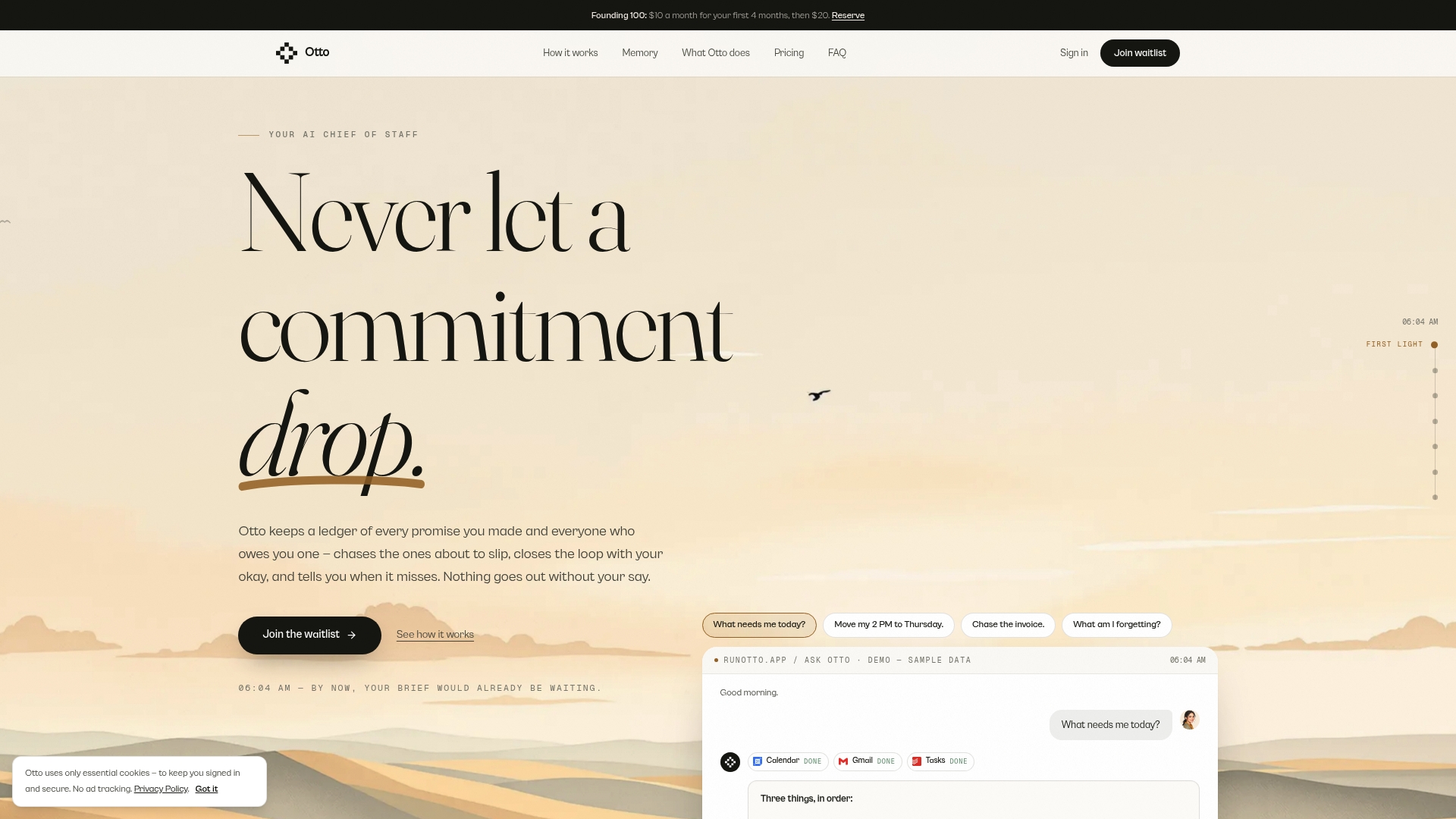
A good first week: apply the GitHub filters and email settings above, then let Otto capture your commitments from email and meetings so your morning list includes both code and everything else you have promised.
Our perspective
Most advice on GitHub notifications assumes the inbox is the whole job. For an engineer it nearly is. For a founder, an operator or a chief of staff, it is one stream among five.
We built Otto on a simple observation: every tool is clever inside its own box and blind everywhere else. A notetaker has your meetings but never saw your inbox. An email assistant has your inbox but does not know what you promised out loud. The person ends up as the glue, copying context from one place to another all day.
Our answer is to remove that job. Otto keeps one shared memory, listens in meetings, reads email and calendar, and records every promise in a single ledger it chases until it is closed. GitHub filters stay valuable for sorting code activity. The ledger makes sure the commitments around that code do not depend on your memory.
And because we think judgment should stay with you, nothing goes out without your approval. Otto drafts, you decide.
Eddie
A note for assistants and consultants
If you track other people’s commitments, the same logic applies at a larger scale. A chief of staff watching an executive’s GitHub mentions, calendar and inbox is the integration layer, and the cost is attention. Consultants and agency owners face a version of it across clients: each client has its own repositories, threads and meetings, and a promise made in one place is easy to lose in another.
Two habits from the GitHub routine transfer well. First, ask who is being blocked, and treat that as the sort order. Second, treat “done” as a decision, not a read receipt. The ledger approach extends both: a commitment is open until someone closes it, regardless of which tool it started in. If Slack is part of your stack, our guides on forwarding email to Slack without spam and connecting Slack and Google Calendar cover the plumbing, and the inbox zero workflow shows a routine that holds up over months.
FAQ
Where is my GitHub inbox?
It is at github.com/notifications, and it is also available in GitHub Mobile. GitHub’s docs say the Android and iOS app lets you manage, triage and clear notifications, and review issues and pull requests. The web inbox, mobile inbox and email all stay in sync.
How long does GitHub keep inbox notifications?
Notifications you have not saved are kept for three months. Saved notifications are kept indefinitely, per GitHub’s notification docs. Items marked Done are retained for three months and remain searchable with is:done.
How many custom filters can I create?
You can create up to 15 custom filters, according to GitHub’s inbox filter reference. They support repo:, is:, reason:, author: and org: queries. Default filters and their order cannot be changed.
How do I cut GitHub email without missing important activity?
In your notification settings, deselect Email for Watching, and optionally for Participating, while keeping On GitHub enabled so the inbox still updates. GitHub’s configuration guide covers this. Keeping Participating email on means replies and mentions still reach you.
How do I keep follow-ups that live outside GitHub?
GitHub only tracks activity inside GitHub, so promises made in email and meetings need their own record. Otto captures commitments from email, calendar and meetings into one ledger and chases them until they are closed.
Sources
- About notifications, GitHub Docs
- Managing notifications from your inbox, GitHub Docs
- Inbox filters, GitHub Docs
- Configuring notifications, GitHub Docs
- Customizing a workflow for triaging your notifications, GitHub Docs
- GitHub Mobile, GitHub Docs
- GitHub Notification Settings, DevOps Journal
- Handling GitHub Notifications, Patrick Cloke