 Otto
Otto15–20 Open Threads? Set Reply Aware Gmail Follow Ups That Close Loops
15–20 Open Threads? Set Reply Aware Gmail Follow Ups That Close Loops

Need a one-off nudge? Snooze the thread. Writing now but sending later? Use Schedule send. Want Gmail to passively flag stale threads? Turn on Nudges. None of these know if someone replied, so the moment you’re tracking more than a handful of “waiting on” threads or a missed reply costs you money, it’s time for reply-aware automation.
TL;DR:
- Gmail’s reminder tools operate independently, with Nudges, Snooze, Schedule Send, and Tasks each serving distinct follow-up functions without integration.
- Automated reply-aware reminders are only possible through third-party extensions, sequence tools, or AI assistants that monitor reply status across multiple channels.
- Manual workflows, such as creating a “Waiting On” label and routine triage, are effective until the volume of open threads exceeds about 15 to 20 per week.
- Combining tools, like scheduling a follow-up and snoozing the same thread, can enhance timing control but requires careful management to avoid double sending.
- Automations that track actual conversation status and cancel follow-ups upon reply significantly improve follow-up efficiency for busy professionals.
Table of Contents
- How Do You Set Up Gmail Follow-Up Reminders?
- Snooze vs. Schedule Send vs. Nudges vs. Tasks: Which One Do You Need?
- When Should You Add Automation to Your Gmail Follow-Ups?
- Building a “Waiting On” Workflow That Actually Closes Loops
- Four Follow-Up Templates You Can Copy Right Now
- How Otto Closes the Gaps Gmail’s Follow-Up Tools Leave
- Fix the System, Not Your Memory
- Try Otto to Handle the Follow-Ups Gmail Can’t
- Sources
How Do You Set Up Gmail Follow-Up Reminders?
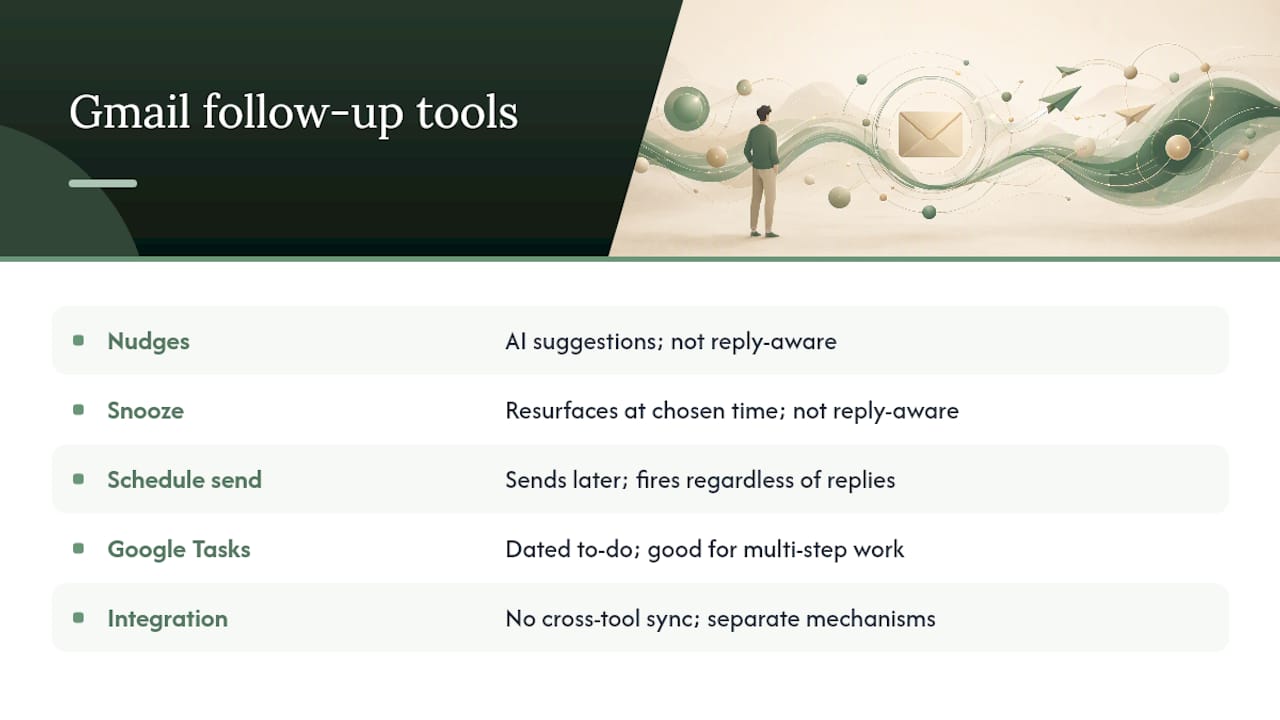
Gmail splits reminder functionality across four separate tools rather than offering one unified feature. Nudges surface AI-flagged messages, Snooze resurfaces a thread at a chosen time, Schedule send delivers a pre-written message later, and Google Tasks creates a dated to-do tied to an email. None of them talk to each other, so knowing which one to reach for saves real time.
1. Turn on Nudges. Open Gmail on desktop, click the gear icon, then “See all settings.” Under the General tab, find “Nudges” and check both boxes: “Suggest emails to reply to” and “Suggest emails to follow up on.” Save changes. Within a day or two, Gmail starts inserting small labeled banners at the top of your inbox pointing at threads it thinks are stale. These suggestions are algorithmic, not something you configure by contact or deadline, so treat them as a background safety net rather than your primary system.
2. Snooze a thread you need to see again. Hover over any email in your inbox and click the clock icon (or open the email and use the same icon in the top toolbar). Pick a preset time like “Tomorrow” or “Next week,” or choose a custom date and time. The thread disappears from your inbox and reappears at the top when the timer hits, exactly where you left it. On mobile, swipe the email left or right depending on your gesture settings, then tap the clock icon. The keyboard shortcut on desktop is “h” once an email is selected.
3. Schedule a follow-up you write today. Compose your message, then click the small arrow next to the blue “Send” button instead of the button itself. Select “Schedule send” and choose a time. Gmail offers smart suggestions like “Tomorrow morning” or “Monday morning,” or you can set a custom slot. For follow-ups, early morning on the day you want a response tends to outperform end-of-day sends, since it lands at the top of someone’s inbox when they first check email.
4. Add multi-step threads to Google Tasks. Open the email, click the three-dot menu, and select “Add to Tasks.” This creates a linked to-do in the Tasks panel on the right side of Gmail, where you can set a due date. This matters most for anything that needs more than a single reminder. A client onboarding thread with three deliverables benefits from a task with sub-items far more than from a single Snooze.
Pro Tip: Combine Schedule send with Snooze on the same thread. Send your follow-up to go out Tuesday at 8 a.m., then snooze the original thread to reappear Tuesday at 9 a.m. If they haven’t replied by the time your snooze fires, you already know your follow-up is in play.
None of these four tools read replies. Schedule send fires whether or not the recipient already answered you, and Gmail’s reminder options top out at these four separate mechanisms with no unified “reminders” feature connecting them.
Snooze vs. Schedule Send vs. Nudges vs. Tasks: Which One Do You Need?
Each tool solves a different problem, and picking the wrong one is why most people feel like Gmail’s reminder system fights them instead of helping.
- Snooze is best for: personal timing control on a single thread. Limitation: fully manual, and you have to remember to check whether a reply already came in before it resurfaces.
- Schedule send is best for: pre-writing a follow-up you know you want to send regardless of what happens between now and then. Limitation: it fires blind. It has no idea if the recipient already answered, so you risk sending a follow-up to someone who replied yesterday.
- Nudges is best for: a passive backup that catches threads you genuinely forgot about. Limitation: zero configurability. You cannot set it to watch a specific contact, deadline, or thread.
- Google Tasks is best for: multi-step work tied to one email that needs its own checklist. Limitation: it lives outside the inbox, so it adds a second place to check rather than surfacing inside your normal workflow.
Google’s own Nudges are explicitly described as automatic suggestions that you can only toggle on or off in Settings, not configure per contact or condition. That single design choice is why so many people ask if there’s a “real” reminder feature in Gmail. There isn’t one, not in the sense of a rule you can write.
The one-sentence decision rule: if you need a reminder that cancels itself the moment someone replies, none of Gmail’s four native tools does that, and you need automation instead.
When Should You Add Automation to Your Gmail Follow-Ups?
Reply-aware automation means the tool checks the actual conversation state before it acts. If the recipient replied, the reminder or scheduled follow-up cancels itself. If they didn’t, it fires on schedule. That single behavior is the reason professionals move past Snooze and Schedule send once their outreach volume grows past a handful of threads a week.
Three broad categories cover most of what’s available:
- Browser extensions add inline reminder icons directly in your Gmail interface, usually flagging a thread if no reply arrives within a set window.
- Sequence automation and mail-merge tools send a series of follow-ups on a timer, with conditional logic that stops the sequence the moment a reply lands, common in sales and recruiting outreach.
- AI assistants with cross-tool memory track commitments made across email, meetings, and calendar in one place, rather than watching only the inbox.
Community and marketplace listings describe reply-aware trackers that auto-detect a response and clear the reminder automatically, which is the core advantage over anything timer-based.
Before installing any of these, run through a short security checklist. Check what permissions the tool requests (read-only access is very different from send access), where it stores your email data (locally versus on an external server), and how it detects replies (client-side, inside your browser, versus server-side, where your email content passes through a third party). Chrome’s own extension review guidance is a reasonable starting point for vetting anything before you grant it inbox access.

Pro Tip: Before trusting any automation with real client threads, send yourself a test reply and confirm the tool actually cancels the reminder. Some reply-detection systems only check the primary inbox, not a Promotions or Spam-filtered response, and that gap is where duplicate follow-ups come from.
A practical rule of thumb: once you’re juggling more than 15 to 20 “waiting on” threads a week, or a single missed reply carries a real cost (a stalled deal, a client who feels ignored), manual tools stop scaling and automation earns its keep.
Building a “Waiting On” Workflow That Actually Closes Loops
The gap in most people’s follow-up system isn’t remembering to send the first message. It’s tracking which threads are still open a week later, and Gmail gives you no single view for that unless you build one.
- Create a “Waiting On” label. In Gmail, click the gear icon, “See all settings,” then “Labels,” and add a new label with that name. Apply it manually to any thread where you’re expecting a reply, or set up a filter (Settings → Filters and Blocked Addresses) that auto-applies it to emails you send containing phrases like “let me know” or “looking forward to your thoughts.”
- Run a five-minute daily review. Open the “Waiting On” label once a day, ideally the same time each morning, and triage every thread into one of four buckets: reply came in (remove the label), needs a nudge (send a follow-up), needs escalation (loop in someone else or call), or dead (archive and remove the label).
- Check three things before you send any follow-up. Scroll the thread for a reply you might have missed, check whether you already have an open Snooze or Schedule send queued on it, and glance at your calendar for a meeting that might make the follow-up redundant.
- Follow a professional cadence. A commonly recommended rhythm runs a first follow-up two to three business days after the original email, a second four to five business days after that, and a final soft close about a week later. After the third attempt with no response, stop. Continuing past that point reads as pressure, not persistence.
Solo professionals generally find that a “Waiting On” label paired with disciplined Snooze use covers most of their needs. Teams and revenue-critical pipelines tend to outgrow that setup fast, since manual triage doesn’t scale once five people are all sending follow-ups off the same shared deal.
The single biggest failure mode in this workflow is the double send: you snooze a thread, forget you also scheduled a follow-up on it, and both fire the same week. Checking for pending Snooze and Schedule send items before you write anything new is the one step that prevents it.
Four Follow-Up Templates You Can Copy Right Now
Every effective follow-up email follows the same three-step formula: a one-line reminder of what this is about, a single line of context or new value, and a clear call to action. Skip the throat-clearing and get to the ask.
- First follow-up (2-3 days later): “Following up on my note about [topic] from earlier this week. Any thoughts, or is there someone else I should be talking to?”
- Value-add follow-up (4-5 days later): “Wanted to add one thing that might help decide: [specific detail, article, or data point]. Let me know if it changes anything on your end.”
- Meeting follow-up (same day or next morning): “Great talking today. As discussed, I’ll send [deliverable] by [date]. Can you confirm [next step] on your side?”
- Breakup or close (final attempt): “I don’t want to keep filling your inbox, so I’ll close this out for now. If timing changes, my note will be here whenever you’re ready.”
Keep every one of these under 100 words. Skip attachments unless the recipient specifically asked for one, since an unsolicited attachment is a common reason follow-ups land in spam filters. If you want a broader library to pull phrasing from, Crono’s collection of follow-up templates covers variations by industry and tone.
How Otto Closes the Gaps Gmail’s Follow-Up Tools Leave
The core problem with every tool covered so far is that each one sees only its own slice of your work. Snooze knows the thread. Schedule send knows the message. Neither knows what you promised on a call an hour before you opened your inbox.
Otto works from one shared memory across email, calendar, and meetings, so a promise made out loud in a meeting shows up in the same ledger as a promise made in an email thread.
- Otto listens in meetings and reads your email and calendar, capturing every commitment into a single tracked list rather than three disconnected ones.
- It chases open commitments until they’re closed, instead of firing a blind reminder on a fixed timer the way Schedule send does.
- Nothing goes out without your approval. Otto drafts the follow-up; you decide whether it sends.
Picture two scenarios. In the first, you promise a client on a call that you’ll send a revised proposal by Friday. Nothing in your inbox reflects that promise, so nothing reminds you unless you manually add it somewhere. Otto captures it the moment it’s said and tracks it against Friday. In the second, you’re running a sales sequence across a dozen prospects. Instead of a timer-based Schedule send that fires regardless of replies, Otto checks conversation state before drafting the next step.
Pro Tip: If you already run a “Waiting On” label workflow, don’t scrap it. Otto is built to sit on top of habits like that, not replace the judgment calls only you can make about tone and timing.
The tradeoff worth naming: this only works if you’re comfortable with an assistant reading across your email, calendar, and meetings. Otto is built on approval at every send, so the control stays with you, but the visibility it needs to be useful is broader than a single-purpose extension.
Fix the System, Not Your Memory
Most people treat missed follow-ups as a willpower problem: try harder to remember, feel guilty when you don’t. That’s backwards. Nobody’s memory was built to track forty open threads across email, Slack, and half-remembered verbal promises. The fix is a system that holds that state for you, not a New Year’s resolution to “be better about follow-ups.”
The real tradeoff is convenience versus control. Automation saves time but writes in a voice that isn’t quite yours until you tune it. Manual tools keep your voice intact but demand daily discipline most people don’t sustain past week three.
Don’t overhaul everything at once. Pick one workflow, whether that’s the “Waiting On” label or a single automation tool, and run it for two weeks. Count closed loops, not good intentions.
— Eddie
Try Otto to Handle the Follow-Ups Gmail Can’t
Everything in the “waiting on” workflow above, the label, the daily review, the cadence checks, is you doing manually what a shared-memory assistant can do continuously. Otto watches your email, calendar, and meetings together, catches the commitments Gmail’s Nudges and Snooze never see (because they were made out loud, not typed), and drafts the follow-up before you’ve had to think about it.

This fits best if you’re already juggling more than a handful of open threads a week, or if a missed reply carries real cost, a stalled deal, a client left waiting, a promise made on a call that slipped through. Otto never sends anything on its own. Every draft waits for your approval first.
Start with a free trial of Otto and connect your Gmail and calendar to see how many open commitments it surfaces on day one.
Sources
For the official word on how Nudges behave, Google’s own support community thread covers the feature’s limits directly from Google staff and users. A university IT team also published a plain-language breakdown of how Nudges work in practice. For a side-by-side walkthrough of Snooze, Schedule send, and Tasks, EmailAnalytics’ guide to Gmail reminders covers all three methods with screenshots.