 Otto
OttoHuman-in-the-Loop AI: When Your Assistant Should Ask First
Human-in-the-Loop AI: When Your Assistant Should Ask First

Human-in-the-loop AI, in the context of a personal or business assistant, means one thing: nothing irreversible or wide-reaching happens until you say yes. Not “human-in-the-loop” as in labeling training data. Here, it means an approval gate sits between the AI’s decision and the action itself.
The bottom line: gate anything hard to undo or likely to touch other people (sending an email, moving money, canceling a meeting with a client). Let the AI act freely on anything reversible and narrow, like drafting a note or reordering your task list. Products like Otto build this directly into how they operate, and the pattern shows up across serious approval boundary design work in the industry.
Before automating anything, ask:
- Can this be undone easily, and at what cost?
- Who or what gets affected if the AI is wrong?
- Does the AI have enough confidence, or is this a guess dressed up as a decision?
Key Takeaways
Human-in-the-loop AI works when approval gates are scoped by reversibility and blast radius, not applied uniformly to every action.
| Point | Details |
|---|---|
| Definition matters | Human-in-the-loop here means explicit approval before irreversible or wide-reaching actions, not ML data labeling. |
| Use the risk grid | Score actions by reversibility and blast radius, then route to auto, notify, approve, or forbid. |
| Match the pattern to the risk | Use synchronous gates for external sends, async queues for delayed decisions, parallel feedback only for rollback-safe actions. |
| Design for fast decisions | A Deterministic Mandate and a 90-second decision window keep reviewers accurate instead of fatigued. |
| Otto applies this by default | Otto gates emails, schedule changes, and follow-ups through approval before anything sends, centralized in one dashboard. |
Table of Contents
- What “Human in the Loop” Means for an AI Assistant
- The Decision Framework: Reversibility Times Blast Radius
- Three Ways to Structure the Approval Itself
- Designing Approvals So You Actually Answer Them
- A Five-Step Setup Checklist You Can Run This Week
- What This Actually Costs You in Speed vs. Control
- Otto Builds Approval-First Into Every Action
- Sources
What “Human in the Loop” Means for an AI Assistant
Search results on this phrase mostly point to machine learning: people labeling data, correcting model outputs, running quality checks on training pipelines. That’s a real discipline, but it’s not what a busy professional means when they ask whether their AI chief-of-staff has a human in the loop. Here, the term describes something narrower and more personal: does the assistant ask before it acts on your behalf?
The actions worth watching fall into a short list:
- Sending or replying to external email
- Moving money or approving invoices
- Changing calendar commitments other people already accepted
- Editing shared documents, contracts, or policies
- Anything that touches a third party’s inbox, calendar, or expectations
A real approval system gives you three guarantees. Pending actions persist even if you close the app and come back a day later. Every approval or rejection leaves an audit trail. And the system knows who approved what, not just that “someone” clicked yes.
The Decision Framework: Reversibility Times Blast Radius
Most teams overthink this. You need two variables and a simple grid, not a governance committee.
Reversibility asks how hard it is to undo the action and what it costs to fix if it’s wrong. Rescheduling a meeting is cheap to reverse. Wiring a payment is not.
Blast radius asks who or what gets touched. A note to yourself has zero blast radius. An email to a client, a vendor, or a room full of stakeholders has a wide one.
Multiply the two (informally, not mathematically) and you get four natural buckets, a framing that shows up consistently in approval boundary design across the industry:
- Auto: reversible and narrow. Let it run. Drafting internal notes, sorting your inbox, flagging duplicate tasks.
- Notify: reversible but wider reach. Act, then tell the person. Rescheduling an internal meeting nobody outside the team will notice.
- Approve: hard to reverse or wide reach, or both. Sending client emails, confirming payments, canceling external meetings.
- Forbid: don’t build the capability at all. If an action is dangerous enough that you’d review every single instance of it, the fix isn’t a better approval screen. It’s removing the tool. A capability the agent doesn’t have can’t be misused.
Confidence scores and anomaly detection act as modifiers on top of this grid. An action that would normally auto-run can get bumped to approve if the model’s confidence drops below a set threshold or the request looks unusual compared to your normal patterns. This is how you keep the system from asking you about everything while still catching the edge cases.
Pro Tip: Don’t skip the “forbid” tier. Teams that try to gate every risky action, instead of eliminating the riskiest ones, end up training themselves to click approve without reading. That’s worse than no gate at all.
Three Ways to Structure the Approval Itself
Not every approval needs to work the same way, and picking the wrong pattern is where most implementations get clunky.
Synchronous gating stops the action cold until a human responds. Use it when the risky moment is the action itself, like hitting send on an external email or authorizing a payment. The assistant drafts, you review, it fires. Nothing happens in between.
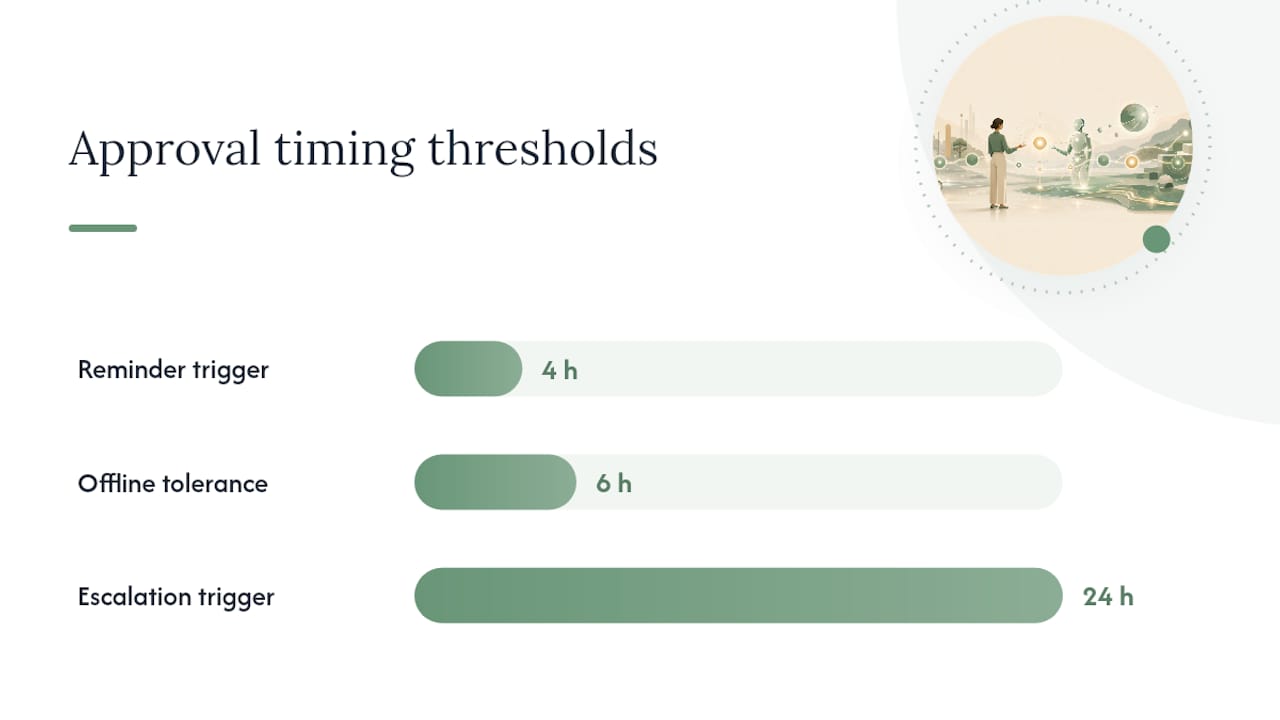
Asynchronous queues let the system pause and resume without blocking anything else. This matters when latency is fine but the action can’t be lost if you’re offline for six hours. It requires durable state: the pending request has to survive a server restart, a dropped connection, or you simply not checking your phone until morning. Cloudflare’s guidance on agentic workflows lays out patterns like waitForApproval calls paired with durable execution, exactly for this scenario.
Parallel feedback runs the action immediately and lets you review or roll it back after the fact. This only works for actions that are genuinely rollback-safe, like reordering a task list or applying a label. If you can’t cleanly undo it, this pattern is the wrong tool.
Whichever pattern you pick, three infrastructure pieces are non-negotiable:
- Durable approval storage so a pending decision survives outages and doesn’t quietly vanish.
- Idempotent execution so a retried approval doesn’t fire the same action twice.
- Reviewer identity attached to every decision, plus timeout and escalation rules.
One common implementation detail: reminders fire around the 4 hour mark, with escalation to a backup approver near 24 hours, based on timeout and escalation patterns used in production agent workflows. Without that, pending approvals just die quietly in a queue nobody checks.
Designing Approvals So You Actually Answer Them
The fastest way to kill a human-in-the-loop system is to make the approvals exhausting. If every request buries you in context you have to dig through, you’ll start rubber-stamping, and rubber-stamping defeats the entire point.
The fix is what’s sometimes called a Deterministic Mandate: the approval screen shows exactly what the AI intends to do, why it chose to do it, and the specific evidence behind that choice. Nothing more. Microsoft’s guidance on approval flows frames the test simply: if a human doesn’t add real judgment by reviewing something, it shouldn’t be gated in the first place.
Aim for a 90-second decision. That means surfacing only three things: the proposed action, a confidence score, and any anomaly flag. Everything else is noise that slows you down without improving your decision.
A few practical habits keep this sustainable:
- Route approvals by expertise. A financial approval shouldn’t land on the same person reviewing calendar changes.
- Set an SLA and a timeout behavior for every queue, not just the important ones.
- Track approval rate, mean time to decision, and the percentage of actions running fully automated. A shrinking auto-approve share over time usually means your thresholds need attention, not more gates.
Pro Tip: If your approval rate sits above 95% for weeks, that tier is probably too conservative. You’re spending attention on decisions the system has already proven it can make correctly.
A Five-Step Setup Checklist You Can Run This Week
You don’t need a committee to configure this. Here’s the order that actually works.
- Inventory every action your assistant can take, from drafting emails to changing calendar events, and score each one on reversibility and blast radius.
- Set initial approval boundaries using the auto/notify/approve/forbid grid, along with a confidence threshold you’re comfortable with, and write down your acceptable error rate before you launch, not after something goes wrong.
- Pick a pattern per action category. Synchronous for external sends, async queues for anything that can wait a few hours, parallel feedback only for actions you can cleanly undo. Configure durable storage and timeout rules before turning anything on.
- Run a shadow period. Let the assistant propose actions without executing anything, and compare what it would have done against what you’d have actually approved.
- Loosen boundaries gradually, and only where you have evidence for that specific slice of actions. If email drafts to known contacts have a 98% approval rate over a month, move that slice toward auto. Don’t loosen everything at once because one category performed well.
A few things worth keeping in mind as you configure this:
- Don’t confuse “notify” with “approve.” Notify still lets the action run.
- Writes to durable settings, like a saved policy or a template other automations depend on, deserve approve-tier treatment even if the write itself looks small.
- Review your forbid list every quarter. Capabilities you removed for good reason sometimes get quietly re-requested by a new integration.
What This Actually Costs You in Speed vs. Control
Every approval gate is a trade of speed for safety, and pretending otherwise gets people burned. The right question isn’t “should I add approval gates,” it’s “where can I afford the latency, and where can I not.”
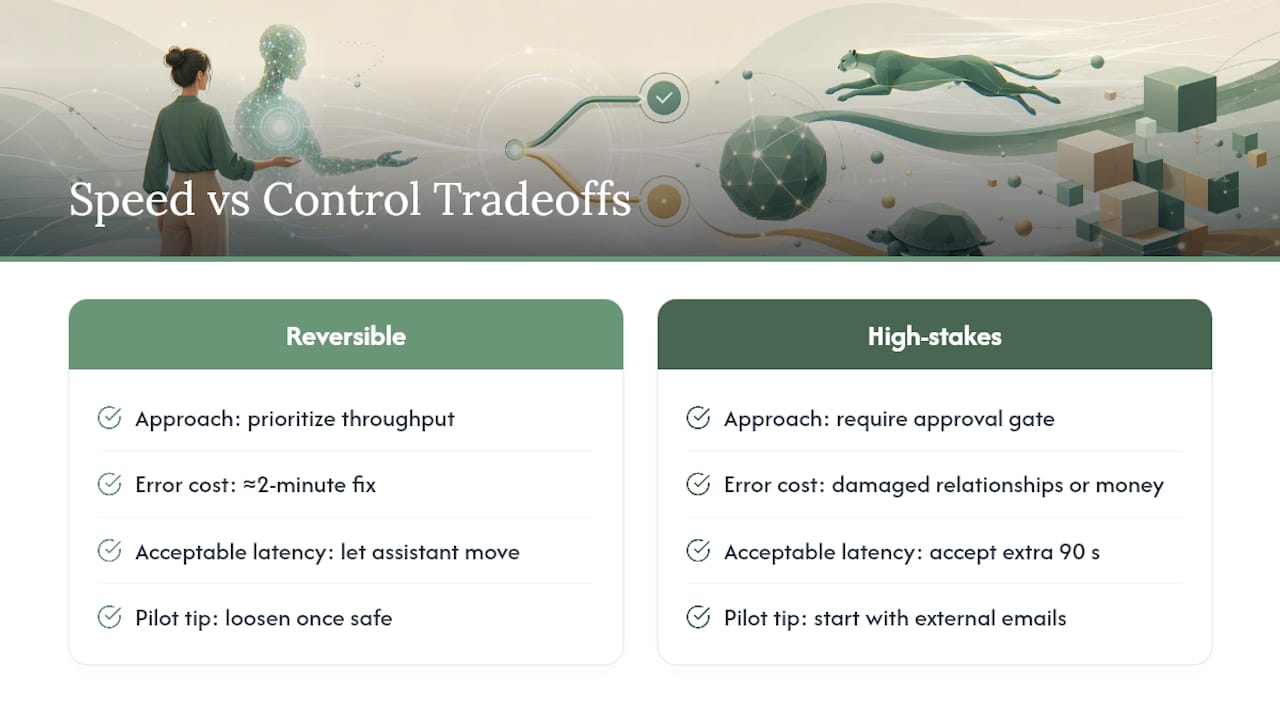
For anything reversible, prioritize throughput. Let the assistant move. The cost of being occasionally wrong is a two-minute fix. For anything that reaches another person’s inbox or moves money, accept the extra 90 seconds. That’s cheap insurance against a mistake that damages a relationship or costs real money.
Approval design isn’t a placeholder you’ll remove once you “trust the AI more.” Treat it as a permanent piece of product design, the same way you’d think about a save button or an undo history. If you’re piloting this with a small team, start with one high-stakes category, like external emails, and expand from there once your approval rates tell you what’s actually safe to loosen.
— Eddie
Otto Builds Approval-First Into Every Action
Otto is built around the exact framework above: every commitment, email, and schedule change routes through an approval step before anything leaves your inbox or hits your calendar. Nothing gets sent, rescheduled, or finalized without your explicit sign-off, which means the auto/notify/approve grid isn’t something you configure from scratch. It’s already how Otto behaves.

Otto connects to Gmail, Google Calendar, and more than 130 other tools, pulling your commitments, follow-ups, and meeting notes into a single dashboard instead of five scattered apps. Every pending action sits in one place with the context you need to decide in under a minute, matching the reviewer experience good HITL design calls for. If you want an AI chief-of-staff that treats your approval as the default, not an afterthought, try Otto and see how your first week of pending approvals looks.
Sources
- Human-in-the-Loop AI Design Patterns: Approval boundaries and risk tiers
- Human-in-the-loop patterns for Agents and Workflows
- Advanced approvals and flows in Copilot Studio