 Otto
OttoInbox Zero Workflow: A Practical System That Actually Sticks
Inbox Zero Workflow: A Practical System That Actually Sticks

Process every email exactly once using one of five actions, and end each session with zero undecided messages sitting in your inbox. That’s the entire inbox zero workflow. Batch your processing into scheduled windows, cap replies at two minutes, and let automation handle the sorting so you can focus on decisions. Discipline beats software here, but the two work best together.
TL;DR:
- Automating filtering and unsubscribing reduces processing time and prevents accumulation of irrelevant or outdated emails, making sessions shorter and more focused.
- Automated tools like AI assistants improve follow-up accuracy by connecting emails to meetings and commitments, but human oversight remains essential before sending or archiving.
- The key bottleneck is decision speed on deferred items, which can be fixed by setting clear deadlines and using tools to ensure tasks are completed, not just moved around.
- Achieving and maintaining inbox zero eliminates mental clutter and stress, establishing a predictable, controlled workflow that stops your inbox from controlling your mental state.
Table of Contents
- What Is the Inbox Zero Workflow, Really?
- Why Bother? The Real Cost of a Cluttered Inbox
- How Do You Run a Single Inbox Zero Session?
- Set Up Your Inbox So Sessions Go Faster
- What Habits Keep Inbox Zero From Falling Apart?
- What Should Automation Handle, and What Should You?
- How I Actually Run This (and Where It Breaks)
- What Changes in Your Head Once You Hit Zero
- Does This Work the Same on Every Email Client and Device?
- The Part Most Inbox Zero Advice Gets Wrong
- Otto Handles the Grunt Work Behind Inbox Zero
- Primary Sources and Further Reading
- Sources
What Is the Inbox Zero Workflow, Really?
Merlin Mann coined “Inbox Zero” back when email was eating people alive, and he wasn’t talking about a literal empty folder. The “zero” refers to time spent staring at your inbox, not the number sitting in the unread count, according to TechTarget’s breakdown of the method. You can hit inbox zero with 400 archived messages sitting quietly in a folder. What matters is that none of them require a decision from you anymore.
The actual mechanics come down to five actions, applied to every single message that lands in your inbox:
- Delete/Archive: Nothing to do, keep it or don’t.
- Delegate: Someone else should handle this, so hand it off and confirm they’ve got it.
- Reply: If it takes under two minutes, answer now and archive.
- Defer: Bigger task, so create it in your task manager and get the email out of your inbox.
- Do: Quick enough to just finish outright, right now.
The real shift is behavioral. Todoist’s framing of the method nails it: you’re not scanning email anymore, you’re making a decision on each one. The moment your inbox becomes a to-do list, you’ve lost. Emails sit there getting reread, reconsidered, and half-answered a dozen times before anything happens. Touch it once. Decide. Move on.
Why Bother? The Real Cost of a Cluttered Inbox
Global email volume keeps climbing year over year, and most of that traffic lands directly on your plate as interruption, according to Statista’s tracking of daily email volume worldwide. Every unprocessed message is a tiny open loop your brain keeps checking on, whether you’re aware of it or not.
The cost isn’t just time. It’s attention. An inbox with 200 unread messages forces your brain to re-scan, re-evaluate, and re-triage the same content repeatedly. That’s decision fatigue, and it compounds through the day. Processing to zero eliminates the re-reading tax entirely: you decide once, and the message is gone from your mental workspace.
Professionals who run a disciplined workflow report a few consistent outcomes:
- Longer uninterrupted blocks for actual work, since email stops functioning as a constant background scan.
- Fewer context-switch penalties, because you’re processing in dedicated windows instead of reacting all day.
- Predictable follow-through, since deferred items land in a task system with a deadline instead of rotting in a folder.
Constant availability correlates with lower focus and higher reported stress, according to Microsoft’s Work Trend Index research on the “infinite workday”. Batching isn’t a productivity trick. It’s a defense mechanism against a work pattern that’s measurably bad for you.
How Do You Run a Single Inbox Zero Session?
Here’s the actual run-book. Set a timer, close every notification, and open your inbox only during this scheduled window. Then work through the following steps in order for every message:
- Read it once. No skimming and coming back later. Decide immediately which of the five actions applies.
- Delete or archive anything requiring zero action. Be ruthless. Most inbox clutter is newsletters, CCs, and notifications nobody needed forwarded to them.
- Delegate anything that belongs to someone else. Forward it with a one-line note specifying what you need from them and by when, then archive the original.
- Reply immediately if the response takes two minutes or less. Answer, hit send, archive. Don’t let a quick reply sit “for later” because later never comes for the easy stuff.
- Defer anything bigger. Create a task in your task manager with a short line of context (not the whole email thread) and a real deadline, not “someday.” Archive the email once the task exists.
- Do anything you can finish outright in the moment, like approving a request or confirming a meeting time.
- Confirm delegation actually landed. Don’t just forward and forget. A quick “got it, on it” from the other person is what actually gets the message out of your head, not just out of your inbox.
Pro Tip: Set a hard two-minute cap and stick to it. Stretching the “reply now” window to five or ten minutes is how the two-minute rule quietly falls apart. If it’s going to take longer, it’s a Defer, not a Reply.
Repeat until the inbox is empty of decisions, not necessarily empty of messages.
Set Up Your Inbox So Sessions Go Faster
Configuration work up front pays off every single session afterward. Start with folders, and keep the list short: Action, Waiting, Reference, and Archive cover almost every use case. More folders than that and you’ll spend processing time deciding where things go instead of deciding what to do with them.
From there:
- Build filters or rules that auto-sort recurring senders (newsletters, receipts, automated notifications) straight into Reference or Archive before you ever see them.
- Create a small library of templates for replies you send often, like scheduling requests, status updates, or “thanks, got it” confirmations.
- Bulk-unsubscribe from anything you haven’t opened in 30 days. Most email clients now support unsubscribe from the inbox view directly, so there’s no excuse to let dead newsletters accumulate.
- Set a recurring 30-day purge rule for your Reference folder. If you haven’t needed it in a month, you probably won’t.
Fewer categories, tighter filters, and an aggressive unsubscribe habit are what separate a five-minute inbox session from a 45-minute slog.
What Habits Keep Inbox Zero From Falling Apart?
Setup gets you to zero once. Habits keep you there.
- Batch your sessions. Two or three fixed windows a day (morning, after lunch, before you log off) beat checking constantly. Fifteen to twenty minutes per session is usually enough once your filters are doing real work.
- Kill notifications outside those windows. Turning off badges, banners, and sounds is one of the simplest changes you can make, and it’s backed by Microsoft’s research on constant availability and stress. Silence isn’t a nice-to-have here, it’s the mechanism that makes batching work at all.
- Run a weekly reset. Every Friday, clear anything that snuck into Archive without processing, review the Waiting folder for stalled delegations, check your task manager for deferred items that need a nudge, and audit your filters for new recurring senders worth automating.
None of this is complicated. It’s just consistent.
What Should Automation Handle, and What Should You?
Automation should remove noise, not replace judgment. Filters, snooze, scheduled send, templates, and AI-based triage all reduce the volume you have to touch manually, but the actual decision on each message still needs a human. The most effective professionals combine automated sorting with strict batching and a real two-minute rule. Automation without discipline just means you process a cleaner inbox slower.
This is where an integrated assistant earns its keep. Otto keeps one shared memory across your email, calendar, and meetings, so it can draft a reply that already accounts for what you promised on a call yesterday, extract action items into tasks automatically, and hand you a prioritized focus list each morning instead of a wall of unread messages.
Nothing gets sent or archived without your approval. Otto drafts the response and flags the task. You make the call.
A few guardrails matter regardless of which tool you use:
- Review every AI-drafted reply before it goes out, especially anything client-facing.
- Confirm delegated ownership explicitly rather than assuming a forward was received.
- Avoid auto-archive rules on anything you haven’t tested for a few weeks first.
How I Actually Run This (and Where It Breaks)
My real routine: three sessions a day, twenty minutes each, notifications off outside those windows. I open the inbox, work top to bottom applying one of the five actions, and close it. No lingering.
The failure mode I hit most often is letting “Defer” become a dumping ground, task titles like “follow up” with no deadline, which is just moving clutter from one place to another. The fix is boring: real context, real due date, every time.
Realistically, expect two to three weeks before this feels automatic rather than effortful. Start with just the five actions in week one. Add filters and templates in week two. Layer in the weekly reset by week three. Trying to install the whole system on day one is the most common reason it doesn’t stick.
What Changes in Your Head Once You Hit Zero
The mental shift is bigger than the logistical one. An inbox with 300 unread messages functions like background noise your brain never fully tunes out, a low hum of “something in there needs you.” Processing to zero shuts that hum off completely.

People who maintain the workflow consistently describe a specific kind of relief: not excitement, just the absence of dread when opening their email client. That’s worth naming because it’s easy to dismiss as soft or intangible. It isn’t. Anticipatory stress around an unprocessed inbox is a real cognitive load, and it’s one of the reasons people avoid opening email for hours at a stretch, which only makes the pile worse when they finally do.
There’s also a trust effect that’s easy to miss. When you know your system catches every commitment, whether that’s a deferred task with a deadline or a delegated item you’ve confirmed landed, you stop mentally rehearsing “did I forget something.” That rehearsal loop is exhausting, and most people run it constantly without noticing, because they’ve never experienced the alternative.
The emotional payoff compounds with consistency. One clean session feels good for an afternoon. Weeks of maintained zero change how you approach your inbox altogether. It stops being a source of low-grade anxiety and becomes just another tool you control, the same way you control your calendar. That’s the actual goal, not an empty folder for its own sake, but an inbox that no longer runs your nervous system.
Does This Work the Same on Every Email Client and Device?
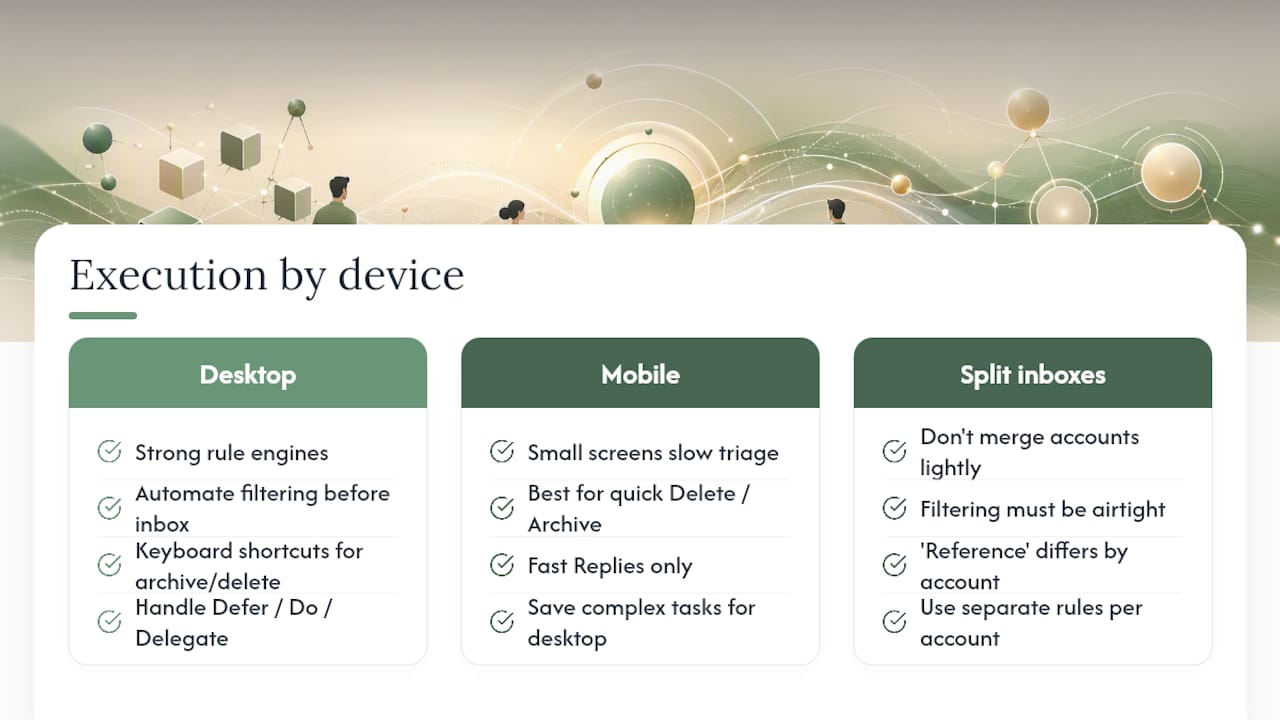
The five actions stay identical everywhere. How you execute them shifts depending on the client.
On desktop clients with robust rule engines, lean hard into automated filtering. Set up rules that route newsletters and notifications before they hit your primary view, and use keyboard shortcuts for archive and delete to speed up processing dramatically.
Mobile is trickier. Small screens make triage slower and templates harder to insert, so mobile sessions work best for quick wins: Delete/Archive and fast Replies. Save anything requiring real thought (Defer, Do, complex Delegate) for your desktop session. Trying to draft a nuanced reply on a phone during a five-minute gap is how quick replies turn into half-finished drafts that need revisiting.
If you split time across a work account and a personal account, resist the urge to merge them into one unified view unless your filtering is airtight. Combined inboxes make it harder to apply consistent rules, since what counts as “reference” material differs wildly between the two contexts.
Whatever device you’re on, the constant is the scheduled window. Don’t let device flexibility turn into checking email constantly just because it’s always in your pocket. Access on your phone should extend your batching discipline, not undermine it.
The Part Most Inbox Zero Advice Gets Wrong
Most guides treat Inbox Zero as a one-time cleanup project: spend a Saturday archiving everything, feel triumphant, and assume the system maintains itself. It doesn’t. The workflow is only as good as the habit loop underneath it, and that loop breaks the moment someone treats a deferred task as “handled” just because the email left their inbox.
The conventional advice also oversells folder structures and undersells the two-minute rule’s precision. People build elaborate labeling systems with a dozen categories, then get so busy filing messages correctly that they never actually address what’s inside them. A tight action set beats a beautiful taxonomy every time.
What the research and the mechanics of this workflow both point to is that the real bottleneck isn’t sorting; it’s decision speed and follow-through on deferred items. If you fix nothing else, fix the handoff between “defer” and “actually gets done.” That’s where AI assistance genuinely helps, not by replacing your judgment, but by making sure a deferred commitment doesn’t quietly die in a task manager nobody revisits. Start there before you touch your folder structure.
— Eddie
Otto Handles the Grunt Work Behind Inbox Zero
Otto is built for exactly the gap that breaks most inbox zero attempts: the space between deciding something needs to happen and actually making sure it does. Because Otto holds one shared memory across your email, calendar, and meetings, it doesn’t just sort messages, it connects a deferred email to the commitment you made about it in yesterday’s call, and surfaces both on the same prioritized list.

That shared context shortens the loop dramatically. Instead of processing an email, opening a separate task app, and hoping you remember the deadline you mentioned out loud in a meeting, Otto extracts the action item automatically and puts it in front of you each morning as part of a single focus list. Drafts still wait for your approval before anything sends, so you keep the final call on every message. If you’re ready to stop being the one holding all the connections in your head, try Otto and see what your mornings look like with one system instead of five.
Primary Sources and Further Reading
- Inbox zero — Marriott Student Review
- Inbox Zero method — Todoist
- What is the Inbox Zero approach to email management? — TechTarget
- Breaking down the infinite workday — Microsoft Work Trend Index
Sources
- Inbox zero
- Inbox Zero method — Todoist
- Breaking down the infinite workday | Microsoft Work Trend Index
- What is the Inbox Zero approach to email management? | TechTarget