 Otto
OttoCut Prep Time in 4 Weeks with Meeting Agenda Automation for Operators
Cut Prep Time in 4 Weeks with Meeting Agenda Automation for Operators

Meeting agenda automation uses AI to draft the agenda, timebox each item, assign owners, and pull pre-reads together before anyone joins the call, then routes action items into your task system afterward. The payoff is time back and fewer dropped commitments. It typically runs through calendar triggers, an AI drafting layer like the one built into Otto, and a verification step before anything goes out.
TL;DR:
- AI-driven agenda automation relies on native platform tools, Zapier integrations, or unified copilots, each with different levels of flexibility, context, and maintenance needs.
- Starting with a recurring meeting type and building a clear template, including objectives, timeboxes, owners, and pre-reads, simplifies calibration and improves accuracy.
- Verifying AI-generated agendas before distribution and enforcing strict rules for action item ownership and due dates reduces errors and increases follow-through reliability.
- Using a single shared memory system that links email, calendar, and meeting notes helps prevent lost context and ensures follow-up commitments are tracked until completed.
- Otto offers an integrated solution that reads your entire workflow, drafts agendas, and automatically chases action items, streamlining meeting preparation and post-meeting follow-up.
Table of Contents
- Why Automate Your Meeting Agenda in the First Place?
- How Does Meeting Agenda Automation Actually Work?
- How Do You Set Up Meeting Agenda Automation?
- How Do You Automate Follow-Ups After the Meeting?
- What Goes Wrong With Automated Agendas (And How to Fix It)?
- What Otto Gets Right About Agenda Automation
- Try Otto for Agenda Automation and Follow-Through
- Sources
Why Automate Your Meeting Agenda in the First Place?
Employees spend a significant portion of the workweek in meetings, and much of that time evaporates because nobody prepared a real agenda. Zoom’s own research on meeting structure points to the same root problem: without timeboxing and named owners, meetings drift and decisions get remade at the next one.
Automation fixes the mechanical part of that problem so people can focus on the actual discussion. A good system handles:
- Agenda drafting pulled from prior meeting notes, open project tickets, or a quick intake form
- Timeboxing each topic so a 30-minute sync doesn’t turn into 55 minutes
- Owner assignment for every item, not just a topic list with no accountability
- Pre-read attachment, so background material shows up before the meeting instead of getting summarized live
- Next-steps extraction, converting verbal commitments into a written record automatically
Pre-meeting triggers matter more than they get credit for. An agenda generated the moment a calendar invite goes out, before context from last week’s conversation fades, is far more useful than one assembled from memory ten minutes before the call starts.
How Does Meeting Agenda Automation Actually Work?
Three patterns cover most of what’s out there right now, and they’re not mutually exclusive.
The first is built-in meeting AI. Platforms like Google Meet, Microsoft Teams, and Zoom now ship with native note-taking layers. Google Meet’s “Take notes for me” feature captures notes during the call, generates a summary and next steps, and attaches the document directly to the calendar event for everyone invited. Zoom’s My Notes does something similar and can trigger a workflow that fires off recaps and creates to-dos once the meeting ends.
The second pattern is integration automation. Tools built on Zapier can pull agenda items from forms, calendars, or project boards and assemble a polished agenda that gets emailed or dropped into a team channel automatically, no manual copy-paste required.
The third, and the one built for people juggling a dozen tools at once, is a unified AI copilot that reads your email, calendar, and meeting history together rather than treating each as a separate silo.
- Built-in AI: fastest to turn on, limited to one platform’s ecosystem
- Zapier-style automations: flexible, but you’re the one maintaining the plumbing
- Unified copilots: broadest context, best for people whose commitments span multiple tools
Pro Tip: Never let automated output go out unreviewed the first few weeks. Microsoft’s own guidance on Copilot-generated meeting notes explicitly recommends verifying AI output, because it can be wrong. Build that check into your workflow from day one, not after the first bad agenda gets sent to a client.
How Do You Set Up Meeting Agenda Automation?
Start with one recurring meeting type. A weekly team sync or a Monday leadership check-in is easier to calibrate than trying to automate every meeting on your calendar at once.
- Pick your pilot meeting. Choose something recurring with a predictable structure.
- Build the template. Atlassian’s guidance on meeting agendas recommends fields for objective, time allocation, owners, and pre-reads. Add a follow-up slot at the end.
- Connect your triggers. This could be a calendar event firing a workflow, an intake form, or a rule pulling from your project board.
- Set a verification window. Give yourself or a teammate a few minutes before the meeting to check the draft.
- Send it out early. Aim for at least a few hours ahead so attendees actually read the pre-reads.
A usable template looks like this:
- Objective: One sentence, what this meeting needs to decide or resolve
- Timebox: Minutes allocated per item, total should match the meeting length
- Owner: Who’s presenting or driving each item
- Pre-reads: Linked docs, not pasted text
- Expected outcome: Decision, update, or brainstorm
- Follow-up slot: Space reserved for action items at the close
Tools like Microsoft Word’s Copilot-based agenda templates can draft a first pass from rough notes or a previous meeting’s transcript, which you then refine and send through Teams or Outlook.
How Do You Automate Follow-Ups After the Meeting?
The agenda is half the job. The other half is making sure whatever gets promised in the room actually lands somewhere trackable, and this is where most systems quietly break down.
Action items need a path into your task system, not just a bullet point in a shared doc nobody reopens. Common patterns:
- Push extracted action items into Jira, Asana, Notion, or Todoist via native integrations or webhooks
- Use meeting transcripts to identify who owns each task and by when, rather than relying on someone to type it up later
- Route the finished notes automatically to everyone who was invited, plus anyone who needed the outcome but couldn’t attend
Zoom’s workflow triggers can generate to-dos straight from a call’s transcript and summary, and Google Meet attaches its generated notes directly to the calendar event so the record lives where people already look for it.
Pro Tip: Decide in advance where notes live permanently. If they’re scattered across email threads, shared drives, and chat messages, nobody can find last month’s decision when it matters. Pick one home for meeting records and route everything there automatically.
Treating this as a one-way process, agenda in, notes out, misses the point. The setups that actually hold up over time feed information back into the project board that generated the agenda in the first place, so context never has to be rebuilt from scratch.

What Goes Wrong With Automated Agendas (And How to Fix It)?
AI misses things. It mis-assigns owners, skips action items buried mid-sentence, or invents a due date nobody said. That’s not a reason to avoid automation, it’s a reason to build a check into the process from the start.
Enforce a few non-negotiable rules in every template:
- Every action item requires a named owner, no exceptions
- Every action item requires a due date, even if it’s approximate
- Descriptions stay short, one line, specific enough to act on without rereading the whole transcript
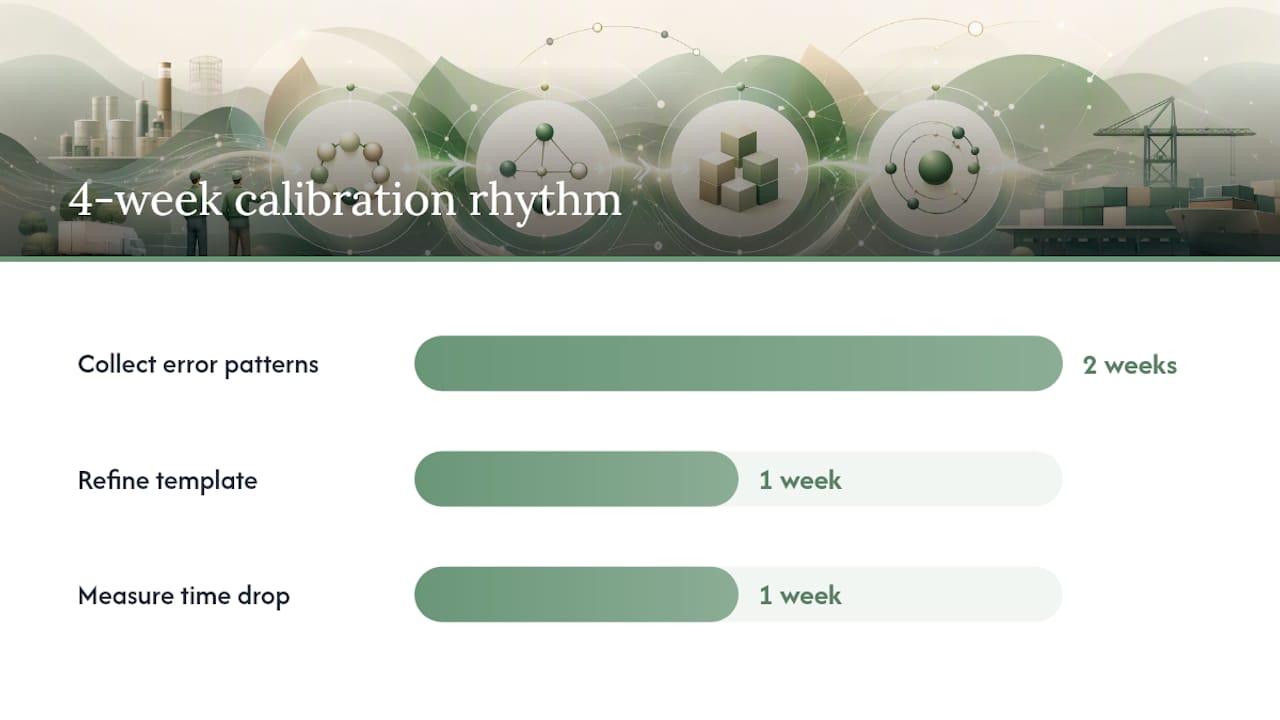
Calibration checklist: Run a pilot across your first several meetings. Track how often the AI missed an item or assigned it to the wrong person, then adjust your prompts or template rules based on what you find. A 4-week rhythm works well for most teams: the first two weeks for collecting error patterns, week three for refining the template, week four for measuring the drop in manual prep time.
Skipping this step is the single most common reason teams abandon agenda automation after a month. They judge the tool by its rough first draft instead of its calibrated fifth one.
What Otto Gets Right About Agenda Automation
Most tools solve one slice of this problem. A notetaker hears the meeting but has never read your inbox. An automation tool moves data between apps but understands none of it. That gap is exactly why follow-ups get lost, the context needed to close a loop lives in three different places and nobody has time to reassemble it every morning.
A single shared memory across email, calendar, and meetings removes that reassembly work entirely. Commitment-led tracking, chasing a promise until it’s actually done rather than just logging that someone said it, tends to close more loops than a system that only takes good notes.
If you’re starting out, pick one recurring meeting, run it through a short calibration window, and judge the system on week four, not week one.
— Eddie
Try Otto for Agenda Automation and Follow-Through
Otto is built for exactly the gap this article keeps circling back to: every other tool sees one piece of your work and misses the rest, supported by its AI call coaching for founders that enhances meeting follow-through. Otto listens in your meetings, reads your email and calendar, and holds all of it in one shared memory, so an agenda item, a pre-read, and a promise you made out loud all live in the same place instead of three.

That means the agenda draft already knows what came out of last week’s call, and every action item gets chased until it’s closed instead of quietly forgotten in a doc nobody reopens. Nothing goes out without your approval first, Otto drafts, you decide. It’s built for founders, operators, and chiefs of staff who are tired of being the connective tissue between five different apps.
Start with one recurring meeting and see what a shared memory does to your prep time. Try Otto and run your first calibration week.