 Otto
OttoBusy Teams: AI Meeting Summaries That Map Notes to Tasks in 1 Hour
Busy Teams: AI Meeting Summaries That Map Notes to Tasks in 1 Hour

AI meeting-summary tools listen to a call, transcribe it, and pull out decisions and action items into notes you can edit and share. The fastest way to a usable summary: connect a calendar-integrated assistant so it joins and captures automatically, or record locally and upload the file, then spend two minutes checking who owns what and by when.
TL;DR:
- Using a calendar bot to join meetings automatically is most effective if all participants are informed beforehand and proper permissions are granted.
- Recording in-person or hybrid meetings requires careful microphone placement and a brief human review to ensure action items are correctly assigned with owners and deadlines.
- Accurate transcription and action-item extraction diminish significantly in noisy environments, with overlapping speakers, strong accents, or vague commitments, necessitating human oversight.
- Integrating summaries with task managers and automating follow-up reminders improve follow-through and prevent missed commitments, especially when field mapping is standardized.
- An integrated memory system that consolidates email, calendar, and meeting data reduces forgotten tasks and enhances follow-up efficiency beyond standalone summarizers.
Table of Contents
- What Does Meeting-Summary AI Actually Produce?
- How Do You Get an AI Meeting Summary Right Now?
- What Should You Look For When Choosing a Tool?
- Where Accuracy and Privacy Actually Break Down
- How Do You Turn a Summary Into Actual Work?
- Why Integrated Memory Beats a Standalone Summary Tool
- Otto Completes the Loop After the Meeting Ends
- Sources
What Does Meeting-Summary AI Actually Produce?
Most tools generate more than a single flat “summary.” You typically get a full transcript, a short executive recap, structured minutes broken into topics, and a separate list of action items pulled out from the conversation. The action-item extraction is usually the part people care about most, since it turns a wall of dialogue into something a team can actually work from.
Beyond the core text, expect a handful of extras that vary by tool:
- Timestamps and chapter markers so you can jump to the moment a decision got made
- Speaker labels that attribute quotes and commitments to the right person
- A searchable archive across past meetings, useful for pulling up “what did we decide about X in October”
- In-app follow-up questions, letting you ask the transcript something instead of rereading it
Delivery formats matter as much as the content. Some tools email a recap right after the call ends. Others generate an editable doc, or push straight into Notion, Google Docs, or a CRM. Vendor listings for note-taking apps routinely bundle these outputs together, which tells you this feature set has become table stakes, not a differentiator.
How Do You Get an AI Meeting Summary Right Now?
You have three realistic paths, and which one fits depends on how the meeting is happening.
- Calendar bot. Connect your calendar, grant the meeting-platform permissions, and confirm auto-join settings so the assistant shows up on its own. Before the call starts, check who else is joining and flag the bot’s presence, since some attendees expect a heads-up before anything gets recorded.
- Local recording plus upload. Record with a decent external mic if you have one, save as WAV or a high-bitrate MP3, and upload right after the meeting while context is fresh. This works well for calls on platforms your summarizer doesn’t natively integrate with.
- In-person or hybrid capture. Place the recording device near the center of the table, use an omnidirectional mic in small rooms, and ask people to avoid talking over each other. Overlapping speech is still the single biggest accuracy killer for in-room capture.
Whichever path you choose, add one more step: a short human read-through to confirm every action item has a real owner and a real deadline attached, not a vague “we should look into that.”
Pro Tip: Run a 20-second test recording before an important meeting starts. If the transcript garbles a name or a number in that clip, fix your mic placement before the real conversation begins.
What Should You Look For When Choosing a Tool?
Pick based on how the summary will actually get used, not how polished the demo looks.
- Integration breadth. A tool that connects to your calendar, email, Notion, Slack, and CRM removes the manual copy-paste step that eats most of the time savings otherwise.
- Action-item fidelity. Check whether it reliably tags an owner and a deadline, not just a task description, and whether you can edit that assignment before it ships anywhere.
- Accuracy and speaker separation. Test it against a sample recording with crosstalk and at least one non-native accent, since that’s where most tools quietly degrade.
- Privacy and enterprise controls. Look for retention settings, admin-level visibility, and encryption in transit and at rest, especially if the meetings involve client or financial detail.
- Pricing structure. Per-minute pricing punishes heavy meeting schedules, per-user pricing punishes teams with occasional guests, and seat-based enterprise pricing usually means procurement review. Match the model to how your team actually meets.
Where Accuracy and Privacy Actually Break Down
No transcription engine is flawless, and the failure points are predictable. Noisy audio, overlapping speakers, strong accents, and implied commitments (“I’ll try to get to it”) rather than explicit ones are where most tools stumble. A Speakwise analysis of how teams actually use meeting notes found that reliable adoption depends less on perfect transcription and more on a short human check that confirms owners and deadlines before anything gets distributed.
A few habits close most of the gap:
- Announce recording at the start of the call and keep a note of who consented
- Use a directional mic in loud rooms and mute background devices
- Circulate a short agenda beforehand, since structured conversations transcribe more cleanly than freeform ones
- Do a 60-second human pass before sending the summary out
On privacy, check retention windows, whether admins can delete recordings on request, who holds enterprise-level access, and whether the vendor states where data is stored. Zoom’s own support documentation shows how much of this native platforms leave to you to configure, rather than setting a safe default automatically.
How Do You Turn a Summary Into Actual Work?
A summary that sits in an inbox does nothing. The workflow that works: capture the meeting, extract the action items, push them into your project or CRM tool, and let automated reminders chase the follow-through.
Mapping matters more than most people expect. A summary’s “owner” field should map directly to an assignee field in your task manager, and its “deadline” should map to a due date, not a free-text note buried in a description. Tools that export to Notion, Google Docs, or task managers with clean field mapping save you from re-typing the same commitment twice.
Practically, this looks like:
- Treat the AI output as a first draft, never a finished record
- Push action items into your project tool within the hour, while the meeting is still fresh
- Assign a specific reminder cadence instead of hoping someone remembers
- Review commitments weekly against what actually got closed
Some newer entrants are pushing this further. Read AI’s email-based digital twin extends meeting summarization into scheduling and inbox context, a sign that vendors increasingly see the meeting summary as one input among several, not a standalone product.
Pro Tip: If your summarizer exports to a task manager, build the field mapping once and save it as a template. Skipping that setup is the single most common reason teams abandon a summary tool after two weeks.
Why Integrated Memory Beats a Standalone Summary Tool
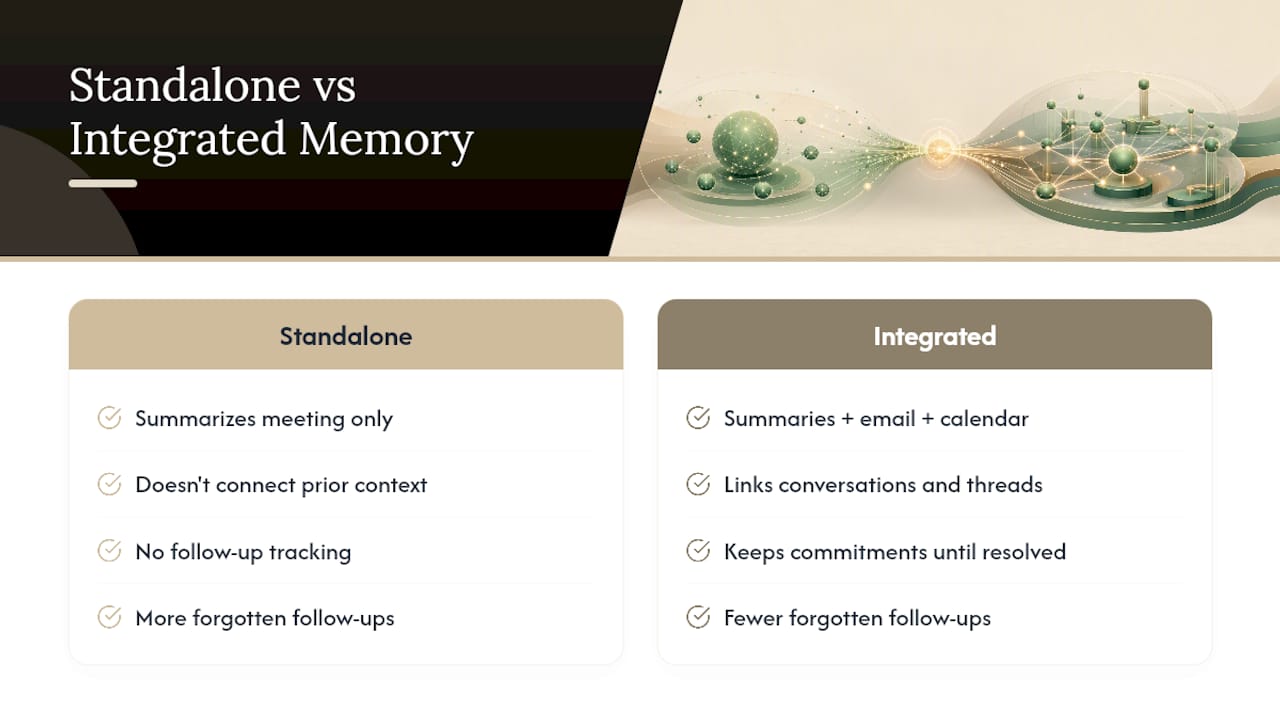
Standalone summarizers solve one problem well and then hand you a new one: a document with no idea what else is on your plate. You still have to remember that the action item from Tuesday’s call depends on an email thread from last week and a commitment made verbally in a hallway conversation nobody wrote down. That’s the actual cost of a siloed tool, and it’s the part most reviews skip.
An assistant that holds email, calendar, and meeting memory in one place doesn’t just summarize, it tracks whether the promise got closed. Otto listens across meetings, email, and calendar and keeps every commitment in a single ledger until it’s resolved, which means fewer forgotten follow-ups and less time spent re-explaining context you already gave a different tool last week. For anyone juggling a dozen tools already, that consolidation is the actual unlock, not the transcription itself.
— Eddie
Otto Completes the Loop After the Meeting Ends
A meeting summary is only half the job. The other half is making sure every promise made on that call actually gets closed, without you playing memory bank across five different apps. Otto is built for exactly that gap.

Otto listens in on your meetings and reads your email and calendar in one shared memory, so a commitment made verbally on a call and a follow-up thread in your inbox live in the same place. It drafts replies and reminders based on what actually got promised, and nothing goes out without your approval first. That’s the difference from a standalone notetaker: Otto doesn’t just hand you a transcript and walk away, it keeps chasing the open items until they’re done.
If you’re a founder, operator, or chief of staff tired of being the glue between your notetaker, your inbox, and your task list, try Otto and see what a single shared memory does to your morning follow-up list.
Sources
- Read AI launches an email-based digital twin to help you with schedules and answers
- Notion meeting notes: ultimate guide (Speakwise blog)