 Otto
OttoSet Up Todoist Calendar Sync with Google and Outlook in Two Minutes
Set Up Todoist Calendar Sync with Google and Outlook in Two Minutes

Yes, Todoist syncs with both Google Calendar and Outlook, either through its native Calendar integration or through iCal feed subscriptions. To start, open Todoist, go to Settings → Calendars, connect your account, then flip on Sync tasks to calendar if you want your scheduled tasks to show up as real events.
TL;DR:
- Todoist only supports one active calendar connection at a time, either Google Calendar or Outlook, which automatically disconnects the other.
- Granting all permission scopes is crucial, as denying any permission can cause partial or complete sync failure, and permissions can sometimes be revoked.
- Turning off “Sync tasks to calendar” deletes all previously created Todoist events in your calendar, so scheduled tasks will disappear when disabled.
- Calendar feeds are read-only, with delays in updates depending on the app, and are ideal for view-only sharing rather than two-way editing.
- Common sync issues usually stem from account mismatches, revoked permissions, outdated apps, or network blocks, and troubleshooting steps include re-authenticating and updating both apps.
Table of Contents
- How to Turn on Todoist Calendar Sync on Web and Mobile
- How to Subscribe to a Todoist Calendar Feed
- What Actually Syncs Between Todoist and Your Calendar
- Fixing Todoist Syncing Issues: A Step-by-Step Checklist
- Best Practices for Keeping Todoist and Your Calendar in Sync
- Why Calendar Sync Alone Doesn’t Solve the Real Problem
- Sources
- FAQ
How to Turn on Todoist Calendar Sync on Web and Mobile
Connecting a calendar in Todoist takes about two minutes once you know where the settings live. The catch is that Todoist splits this menu differently depending on whether you’re on desktop or mobile, and skipping a permission prompt is the most common reason the connection stalls before it starts.
On web or desktop, click your avatar in the top left, go to Settings, then Calendars. From there, choose Connect Google Calendar or Connect Outlook Calendar. Google will ask you to approve three permission scopes (view your calendars, add events, and see your basic profile info). Deny any one of them and the sync partially breaks, so approve all three.
On the mobile app, the path is slightly different:
- Tap Browse in the bottom navigation.
- Tap the gear icon, then select Calendar.
- Choose Connect Google Calendar or Connect Outlook Calendar and accept the permission prompts that follow.
A few things worth knowing before you connect:
- Todoist only supports one calendar provider connected at a time. Connecting Outlook automatically disconnects Google, and vice versa.
- Organizational Microsoft 365 accounts sometimes block third-party calendar access at the admin level. If Outlook won’t connect, that’s usually an IT policy issue, not a Todoist bug.
- Once connected, the official Calendar integration lets you see your Google or Outlook events directly inside Todoist’s Today and Upcoming views, and it can push your time-blocked tasks back out as calendar events.
Two toggles control what actually moves. Sync tasks to calendar pushes tasks that have a specific time onto your calendar as events. Sync all-day tasks does the same for tasks that only have a date attached, showing them as all-day blocks rather than timed events. Turn on the second one only if you actually want a calendar full of untimed to-dos next to your meetings.
How to Subscribe to a Todoist Calendar Feed
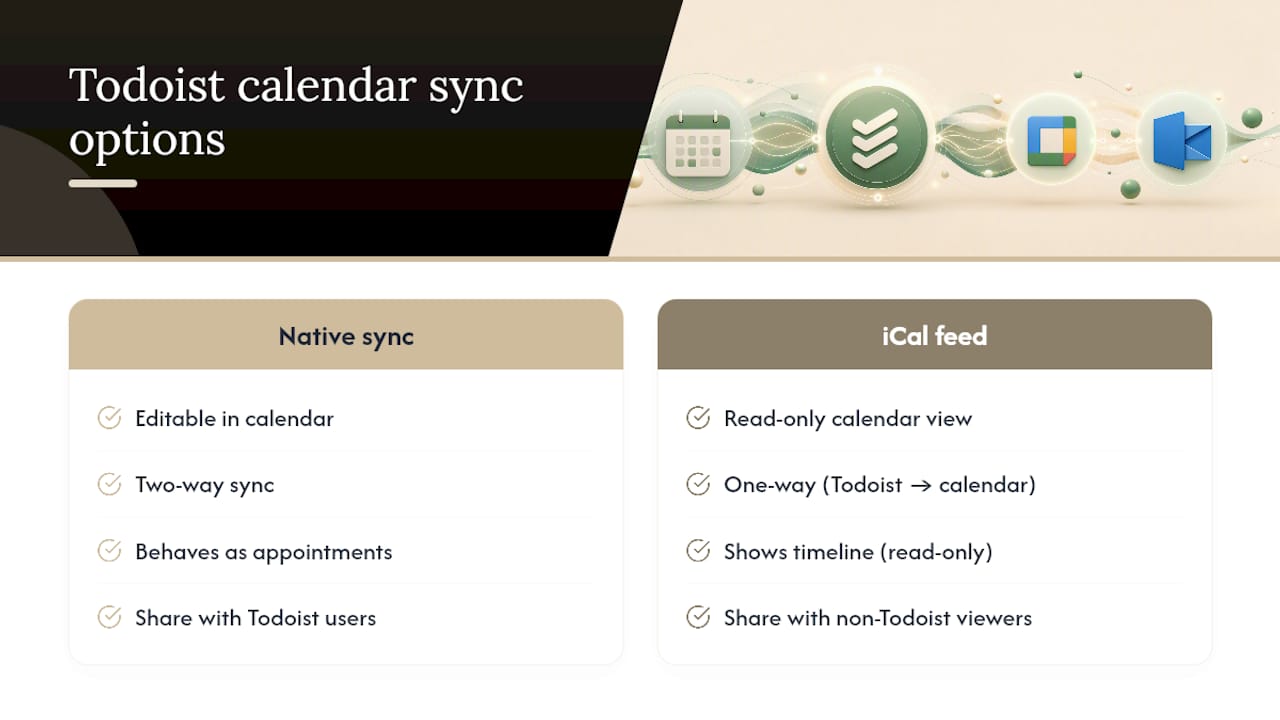
If you don’t need editable, two-way behavior and just want a read-only view of your tasks somewhere else, a calendar feed is the lighter option. Todoist offers two kinds: an account feed showing every dated task across your whole account, and a project feed limited to a single project. The account feed is the right pick for personal scheduling; the project feed works well for sharing a specific list with a client or a team without exposing everything else on your plate.
- Grab the feed URL. For the account feed, go to Settings → Integrations → Calendar Subscription URL and copy the link. For a project feed, open the project’s three-dot menu and select Project calendar feed.
- In Google Calendar, click the plus icon next to “Other calendars,” choose From URL, and paste the link. Google’s own import and subscribe guidance covers this exact flow if you hit a snag.
- In Outlook on the web, go to Add calendar → Subscribe from web, paste the URL, and give it a name. Microsoft’s instructions for importing calendars into Outlook walk through the same steps with screenshots.
- In Apple Calendar, choose File → New Calendar Subscription, paste the URL, and adjust the refresh frequency in the settings that follow.
Feeds are one-way subscriptions, and refresh speed depends entirely on the calendar app pulling the data, not on Todoist. Apple Calendar lets you set a manual refresh interval; Google and Outlook poll on their own schedule, which can mean a delay of a few hours before a new task shows up.
What Actually Syncs Between Todoist and Your Calendar
The native integration maps task fields to calendar fields fairly cleanly, but a few behaviors surprise people the first time they see them.
- Name and time changes in Todoist update the linked calendar event automatically, including any change to date, time, or duration.
- Completing a task doesn’t delete the calendar event outright. Instead, Todoist appends a checkmark to the event title so you can see at a glance what got done.
- Deleting a task removes its corresponding calendar event.
- Recurring tasks are the trickiest case. Editing a single instance of a recurring task doesn’t always update the matching instance on your calendar, and completing one occurrence behaves differently depending on whether you’re closing just that instance or the whole recurring series.
One structural limit matters more than any of the field-by-field details: Todoist only connects to one calendar provider at a time, and any calendar events that appear inside Todoist are read-only. You cannot turn an existing Google or Outlook event into a Todoist task by clicking on it. The sync flows one direction for events and, separately, one direction for time-blocked tasks going out.
There’s also a cleanup detail worth flagging before you experiment: turning off Sync tasks to calendar doesn’t just stop future syncing. It deletes every event that Todoist previously created in your calendar, so anything you’d scheduled that way disappears from Google or Outlook, too.
Fixing Todoist Syncing Issues: A Step-by-Step Checklist
Most Todoist syncing issues come down to one of five causes: a wrong account logged in, a permission that got revoked, an outdated app, a VPN or firewall blocking the connection, or a plan limit you didn’t know you’d hit. Run through this checklist in order before assuming something is broken:
- Check the Todoist status page first. If there’s an active incident, the fix is patience, not troubleshooting on your end.
- Force a manual sync. On desktop, this is usually a refresh button or restarting the app; on mobile, pull down on the task list.
- Confirm you’re logged into the same Google or Outlook account you originally connected. A second Gmail address logged in on your phone is a common silent cause.
- Re-grant calendar permissions from your device’s account settings, then disconnect and reconnect the integration inside Todoist.
- If you’re using an iCal feed instead of the native integration, reissue the subscription URL. The feed link can expire or get revoked if you changed your Todoist password.
- Update both the Todoist app and your calendar app. Sync bugs get patched quietly and often.
- Temporarily disable any VPN or check whether a work firewall is blocking Todoist’s or your calendar provider’s servers.
- Run a sync test: create one test task with a specific time, wait a minute, then check whether it shows up on a second device or in the connected calendar.
Pro Tip: Before contacting support, run the sync test above and note exactly what did and didn’t appear. Support resolves account-specific sync tickets much faster when you can say “created at 2:14 PM, appeared on desktop by 2:16, never appeared in Google Calendar” instead of “sync is broken.”
If none of this resolves it, Todoist’s troubleshooting guide covers a few edge cases around account consistency and browser extensions that can interfere with the connection.
Best Practices for Keeping Todoist and Your Calendar in Sync
Pick the native integration when you want tasks to behave like real appointments, ones you can drag around on your calendar and have the change reflect back in Todoist. Pick an iCal feed when you just need a read-only view, like sharing a project timeline with someone who doesn’t use Todoist at all.
Avoid editing the same task in both places within a few seconds of each other to maintain effective AI productivity workflows that save time. Give the sync a moment to finish before you touch it again, and when in doubt, make the edit in Todoist and let it flow outward rather than editing the calendar copy. Turn on Sync all-day tasks only if a calendar full of untimed to-dos next to your real meetings actually helps you, not just because it’s there. And keep both apps updated. If you want automation beyond what either method offers, tools like Zapier can connect Todoist and calendar apps for custom workflows, though most people never need to go that far.
Why Calendar Sync Alone Doesn’t Solve the Real Problem
Getting Todoist and your calendar to talk to each other is a mechanical problem, and it’s a solvable one. What it doesn’t fix is the harder issue underneath: your calendar shows what’s scheduled, but it has no idea what you actually promised someone on a call yesterday, or in an email thread from last week that never turned into a task at all.
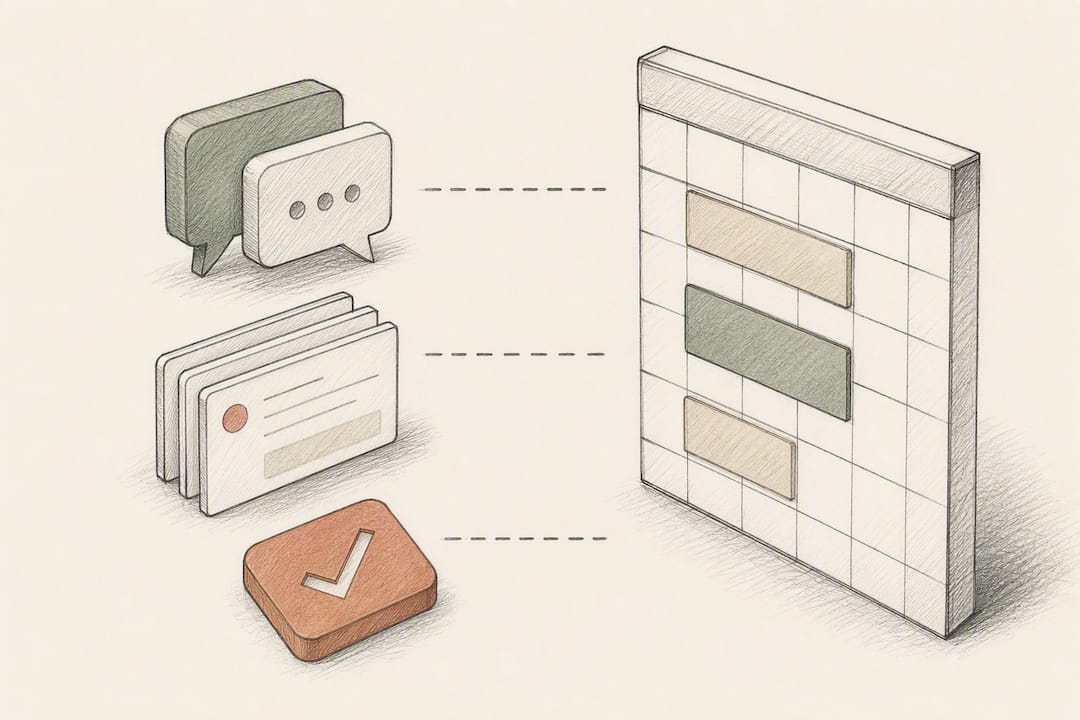
That’s the gap that made me pay attention to what Otto is trying to do. Instead of treating email, calendar, and meetings as three separate systems that occasionally sync, Otto keeps them in one shared memory, so a commitment made out loud in a meeting gets captured the same way a deadline typed into Todoist does. It is designed to help professionals whose work is scattered across multiple tools by tracking commitments until they are completed.
None of that changes how Todoist’s calendar sync works under the hood. Otto isn’t a replacement for the integration you just set up. It’s a layer above it, useful for the commitments that never made it onto a task list in the first place.
— Eddie
Sources
FAQ
Does Todoist Sync With Google Calendar and Outlook?
Yes. Todoist connects natively to either Google Calendar or Outlook through its Calendar integration, and it also offers iCal feeds for one-way subscriptions in any calendar app that supports them.
Why Isn’t Todoist Syncing With My Calendar?
The most common causes are a mismatched logged-in account, revoked permissions, an outdated app, or a VPN or firewall blocking the connection. Run a manual sync and check the Todoist status page for active incidents before troubleshooting further.
How Do I Add Todoist Tasks to My Calendar?
Go to Todoist’s Settings → Calendars, connect Google or Outlook, and turn on Sync tasks to calendar. Timed tasks will then appear as events on your connected calendar automatically.
Can I Connect Multiple Calendars to Todoist at Once?
No. Todoist supports only one calendar provider connected at a time, so connecting Outlook will disconnect Google, and the reverse is also true. To view several calendars at once, you’d need to subscribe to separate iCal feeds in your calendar app instead.